
Instance Management
This document explains how to manage instances through the VPS console.
Instance Status
Instances can be in the following states:
Status | Description |
Deploying | The instance is being provisioned or reinstalled, transitioning to the "Running" state. |
Running | The instance is operating normally. You can run your business on instances in this state. |
Restarting | The instance is restarting after a console reboot command, transitioning back to "Running". |
Starting | The instance is starting up after a console start command, transitioning to the "Running" state. |
Stopping | The instance is shutting down after a console stop command, transitioning to "Stopped". |
Stopped | The instance is properly shut down and cannot provide services. Some instance properties can only be modified in this state. |
Expired | The instance has expired and is pending recycling. No services are provided. If not renewed within 7 days, compute resources (vCPU, memory, system disk, IP) will be released. All configurations and data (system disk, snapshots) are permanently deleted and irrecoverable. |
Terminated | The release operation is complete. The original instance no longer exists, cannot provide services, and all data is permanently purged. |
Violation Warning | The instance has been shut down due to violations of the Terms of Service and requires your attention and rectification. |
Violation Suspension | The instance has been suspended due to violations of the Terms of Service. Please submit a support ticket or contact customer service to appeal. |
Abuse | The instance has been suspended for abuse due to violations of the Terms of Service. Please log into the console to review and rectify the issue. If not resolved within the specified time, the instance will be automatically terminated by the system. |
Destroyed | The instance has been terminated due to repeated or severe violations of the Terms of Service. All configurations and data (system disk, snapshots) are permanently deleted and irrecoverable. |
Start Server
An instance can be started if it meets the following conditions:
The instance is in the Stopped state.
The instance is not expired.
1. Log into the console, navigate to the VPS list, or go to the instance details page.
2. Click Start Service in the operations column on the right, as shown in the image below:
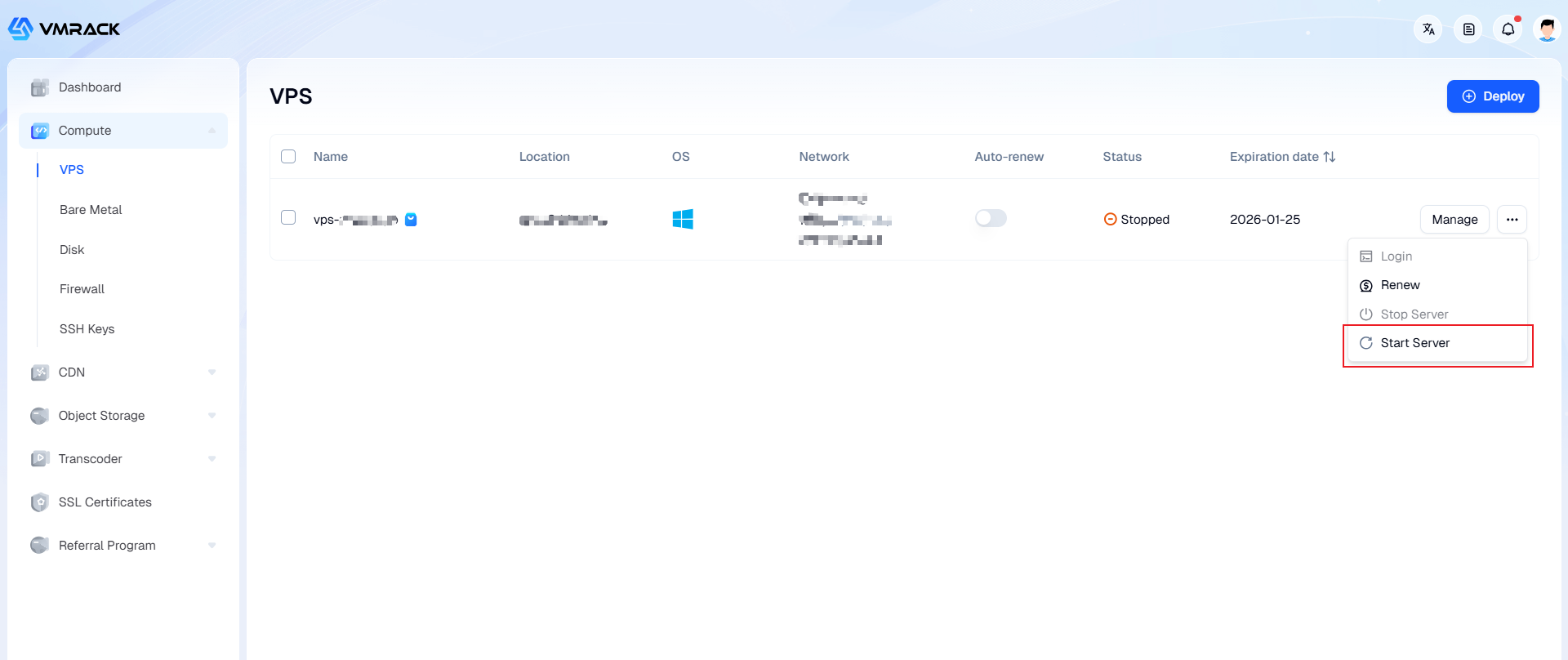
3. The instance is successfully started when its status changes from Starting to Running.
Stop Server
You may need to stop the instance service when you wish to halt its operation or when you need to modify configurations that require the instance to be in a stopped state. Stopping the service is equivalent to shutting down a local computer.
After an instance is stopped, it cannot provide any services. Therefore, before proceeding, please ensure that your VPS has ceased handling business requests.
1. Log into the console, navigate to the VPS list, or go to the instance details page.
2. Click Stop Service in the operations column on the right, as shown in the image below:
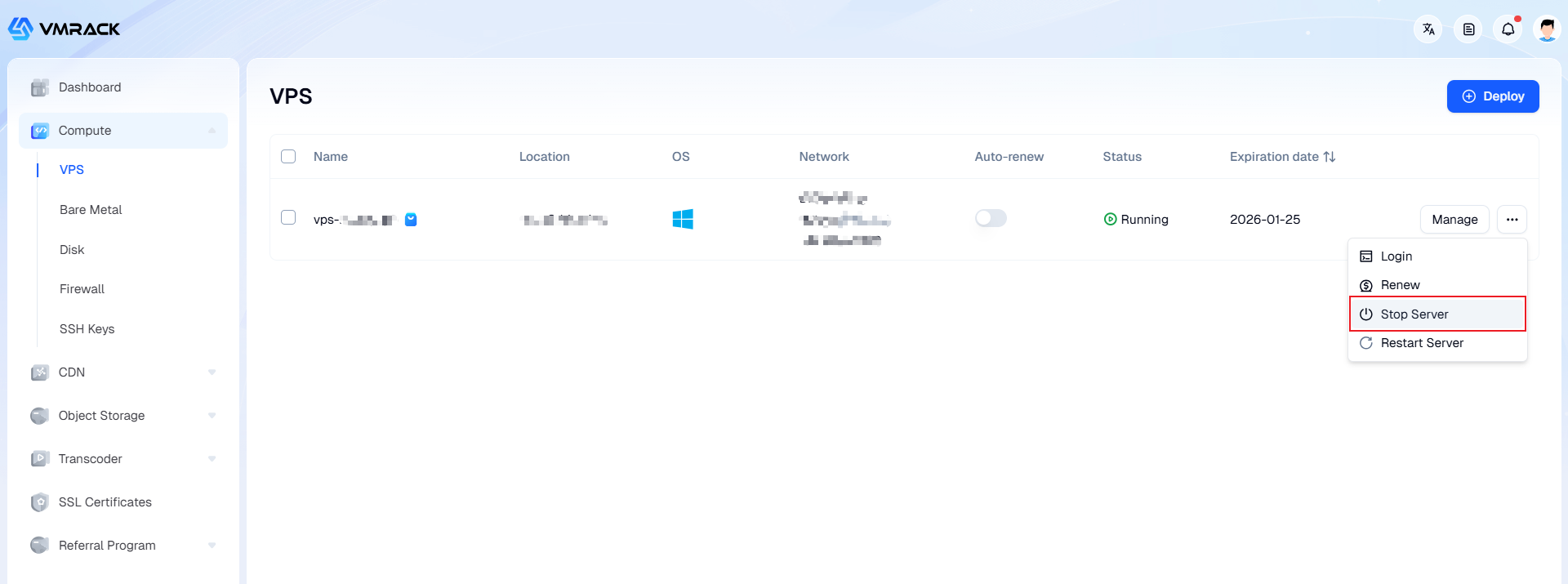
3. The instance is successfully stopped when its status changes from Stopping to Stopped.
Restart Service
A restart operation is a common method for maintaining a VPS. Restarting an instance is equivalent to rebooting the operating system on a local computer.
Before restarting: The instance will be temporarily unavailable during the restart process. Therefore, please ensure your VPS has ceased handling business requests before proceeding.
1. Log into the console, navigate to the VPS list, or go to the instance details page.
2. Click Restart Service in the operations column on the right, as shown in the image below:
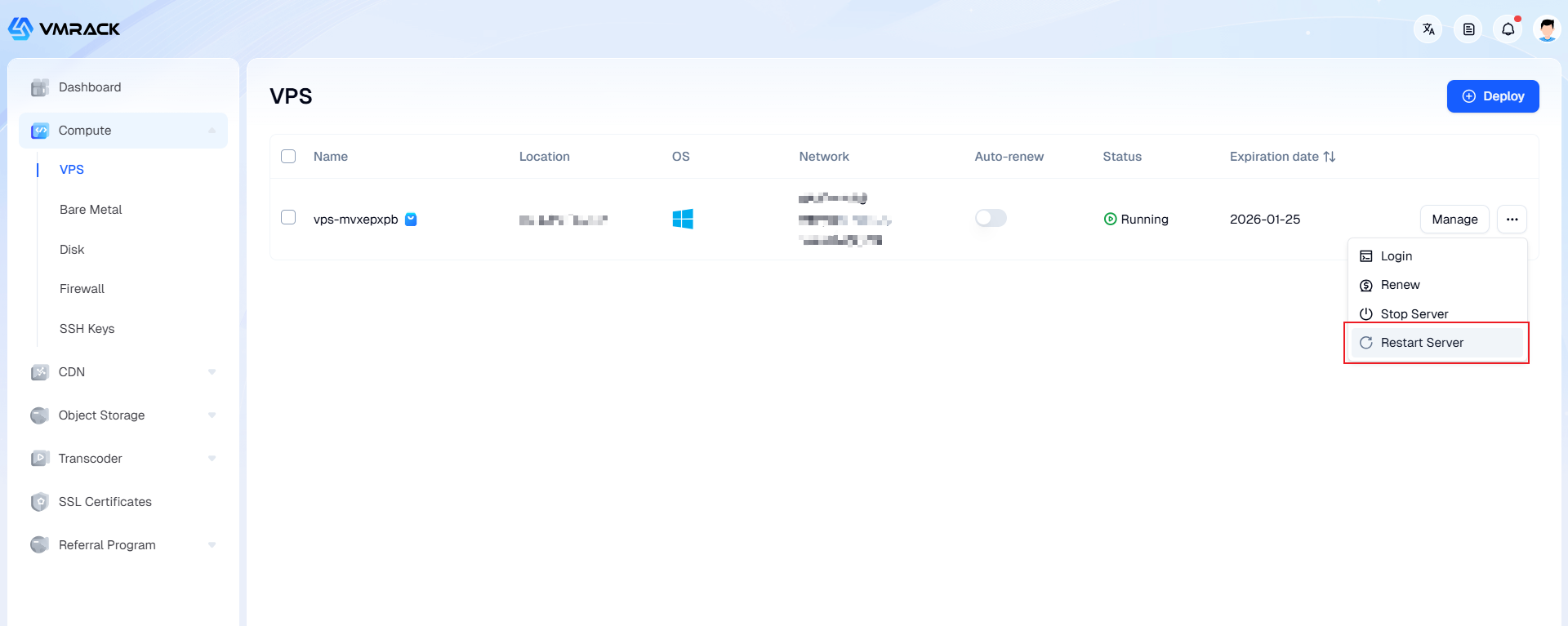
3. The instance is successfully restarted when its status changes from Restarting to Running.
Change OS
The reinstall OS operation restores an instance to its initial post-creation state and serves as a critical recovery method when the instance encounters system failures.
Before reinstalling: Reinstalling the OS will permanently erase all data on the system disk. You must back up your data before proceeding to avoid potential loss.
1. Log into the console, navigate to the VPS list, and enter the instance details page.
2. Click Change OS, as shown in the image below:
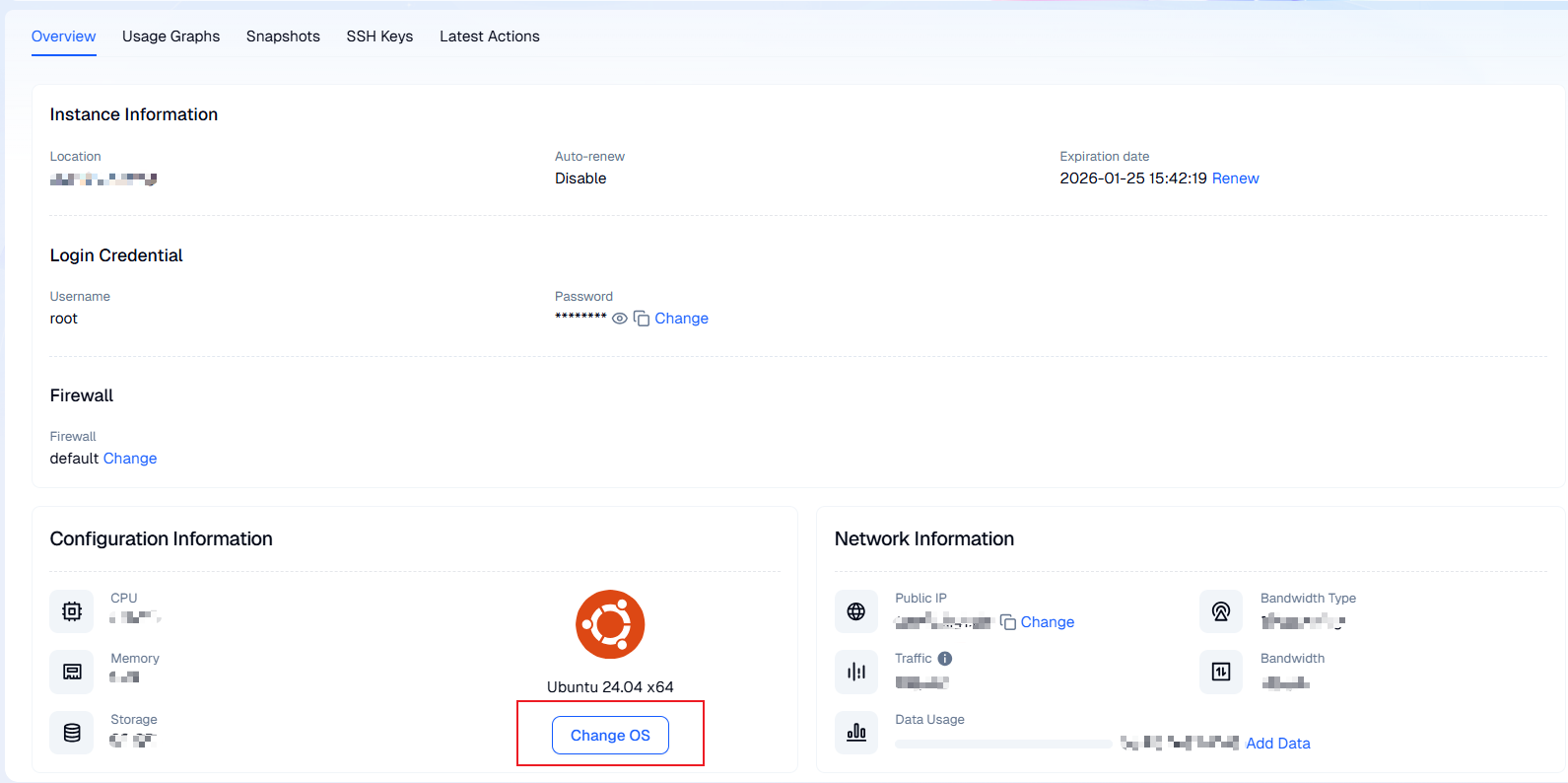
3. In the Change OS dialog that appears, configure the new operating system and login credentials.
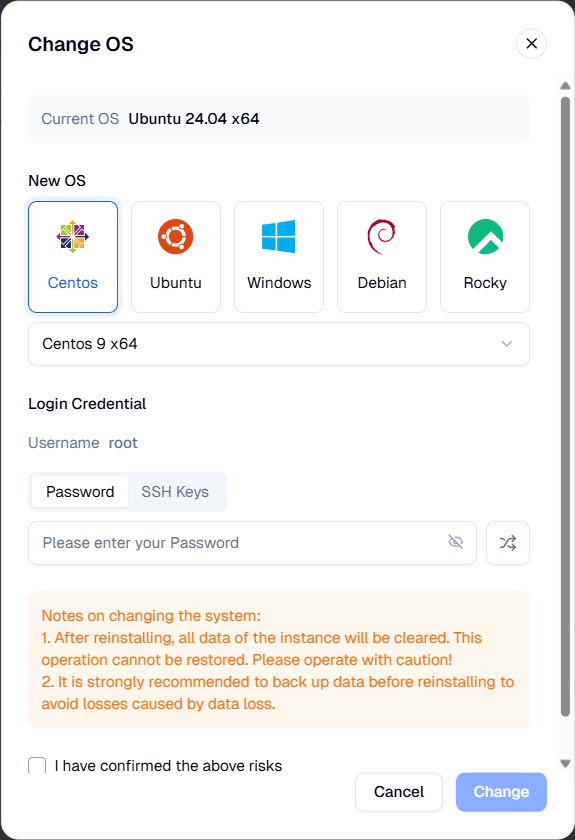
Configuration Item | Description |
|---|---|
Image | The operating system you require, for example:
|
Login Credentials | You need to set the authentication method for logging into the server. Please be sure to remember your choice: Set Password: Create a strong password for the system's default administrator account.
Associate SSH Key (Linux instances only): This is a more secure login method.
|
Change Password
You can change the login password for your instance in the console.
Before changing: Password reset is only supported for instances in the "Running" state.
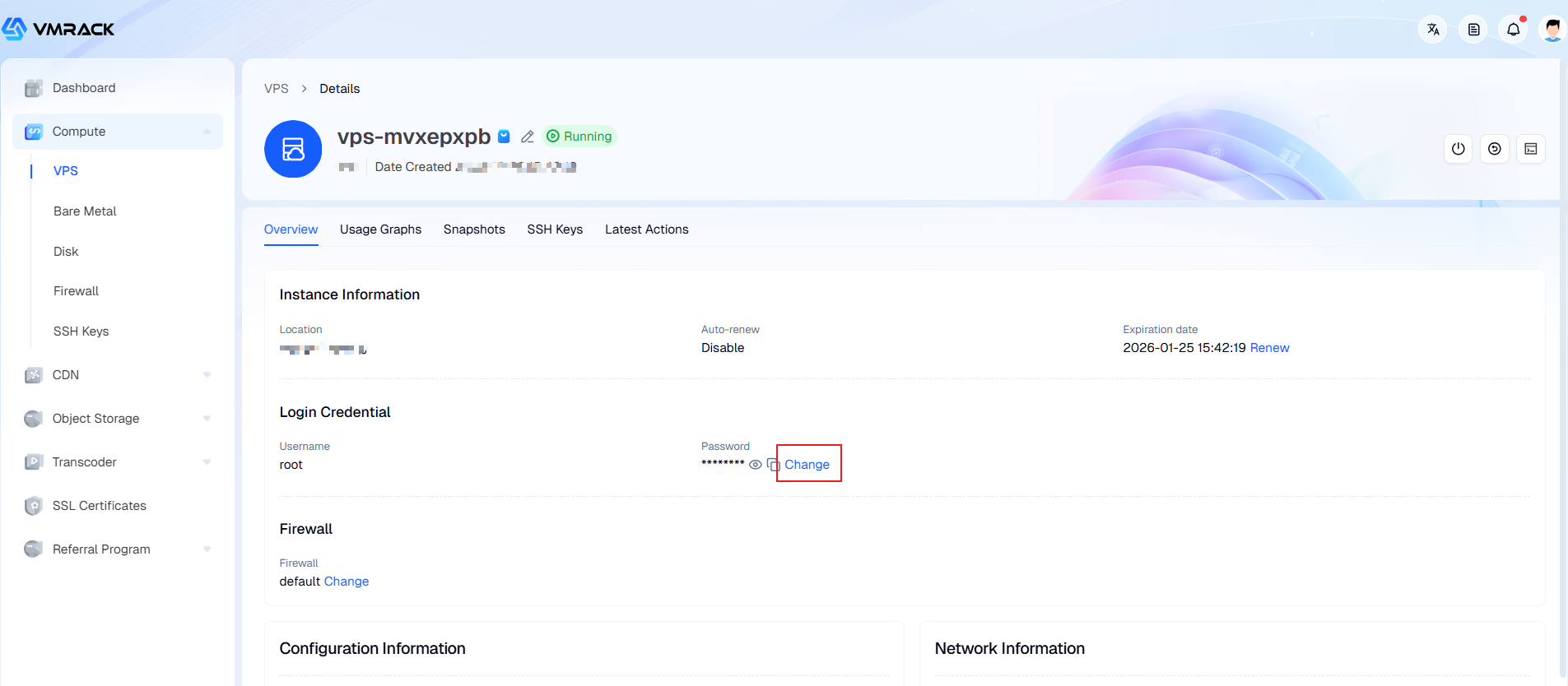
1. Log into the console, navigate to the VPS list, and enter the instance details page.
2. Click Change Password, as shown in the image below:
3. In the Change Password dialog that appears, set your new password.
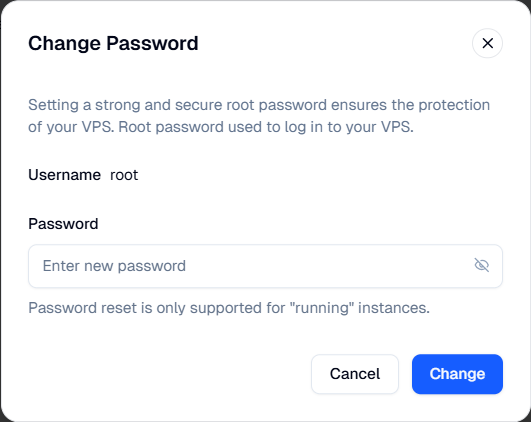
Password Rules: 8-64 characters, using letters, numbers, and punctuation marks (except spaces). Must include at least three different character types.
- Products
- VPS Hosting
- VPS HostingUnmetered
- Bare Metal
- GPU Rental
- CDNPublic Beta
- Custom CDN
- Object StoragePublic Beta
- TranscoderPublic Beta