
Workflow Management
A workflow is a pre-arranged series of task processes. It enables the sequential execution of jobs according to pre-arranged links and conditions after specifying the input file source. You can configure nodes such as Normal Transcoding, Video Splicing, and Snapshot in the workflow. By freely combining these nodes, you can achieve typical functional scenarios like multi-resolution transcoding, multi-language subtitles, or multi-format packaging.
Create Workflow
Log in to the Transcoder Console, and click Workflow Management in the left menu bar to enter the Workflow List.
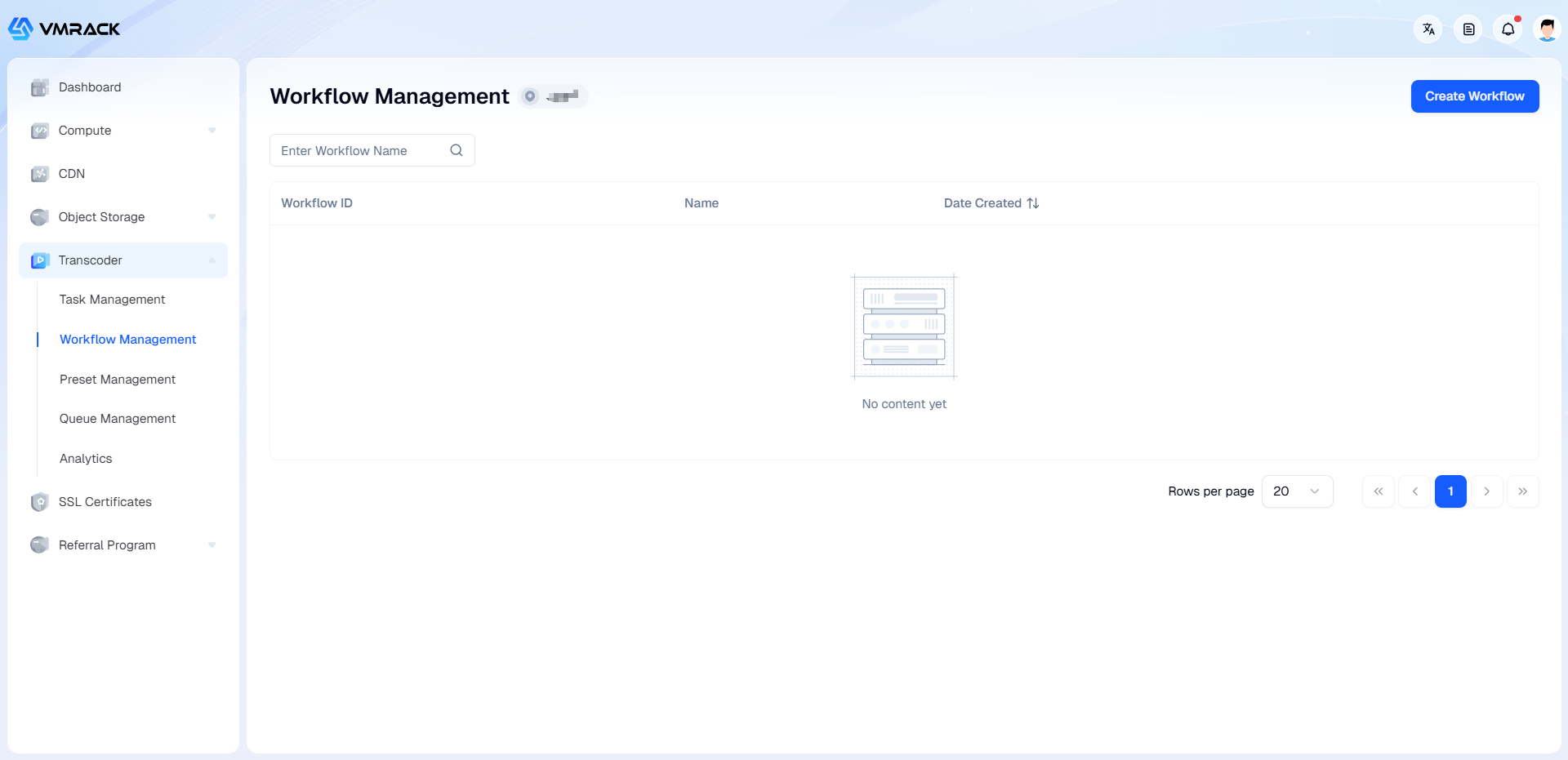
Click the Create Workflow button to enter the workflow creation page.
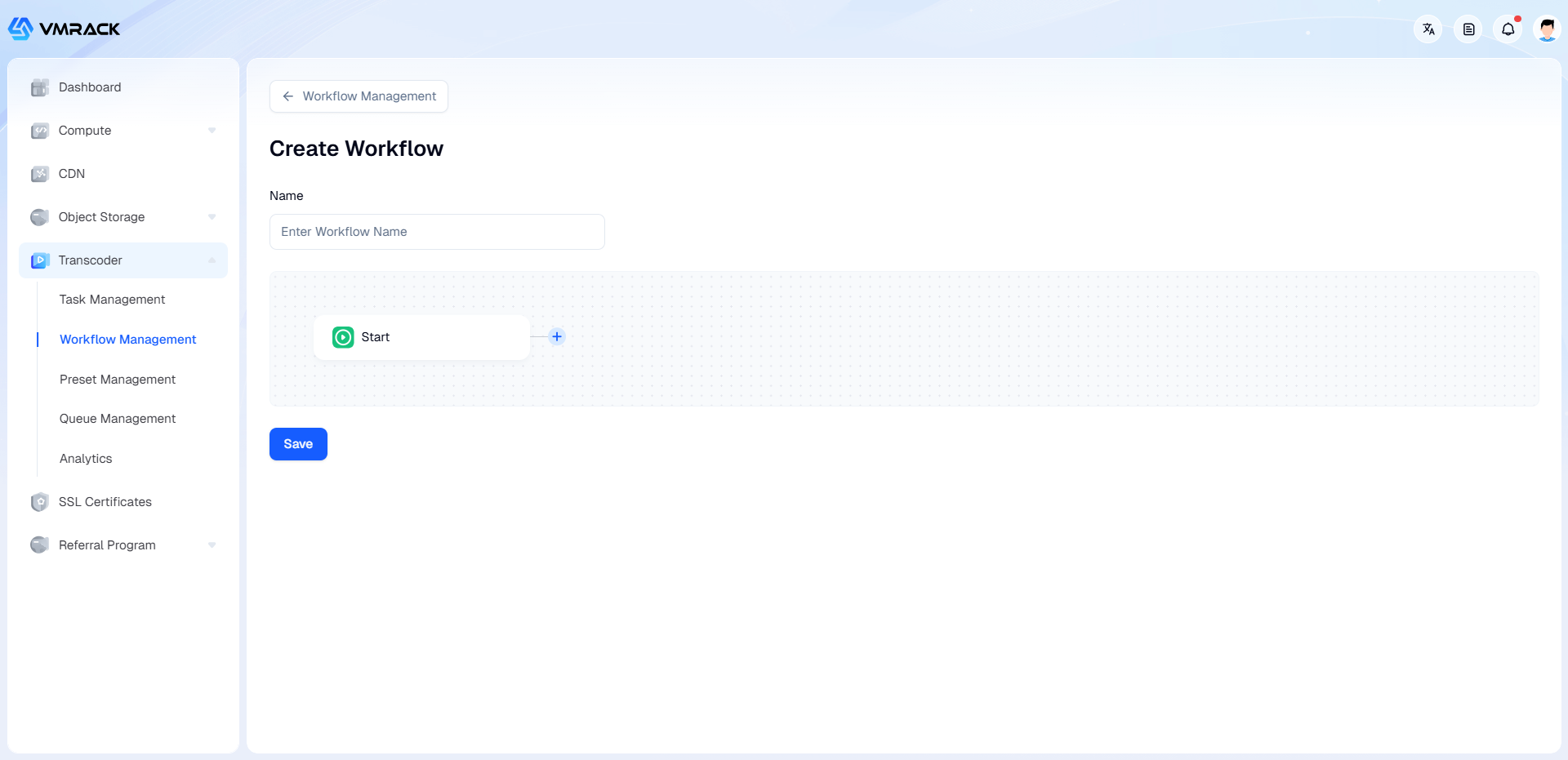
Add and configure nodes as needed.
Click the Save button to complete the workflow creation.
Node Description
You can add the following nodes when creating a workflow:
Node Name | Node Description |
Normal Transcoding | Converts video files into formats suitable for playback on all platforms, providing users with a smooth and clear viewing experience. |
Video Splicing | Used to splice multiple videos with different formats, encodings, or resolutions together, outputting a new video with a unified format, encoding, and resolution. |
Snapshot | Captures images from the video at specified time points. |
Output | Sets the storage path and file naming rules for the processing results. This node is the final state of the workflow. |
Node Relationships
When saving a task, the last node of every workflow chain must be the Output node.
Adding node relationships is as follows:
Parent Node | Optional Next Node |
Normal Transcoding | Normal Transcoding Video Splicing Snapshot Output |
Video Splicing | Normal Transcoding Video Splicing Snapshot Output |
Snapshot | Output |
Normal Transcoding Node
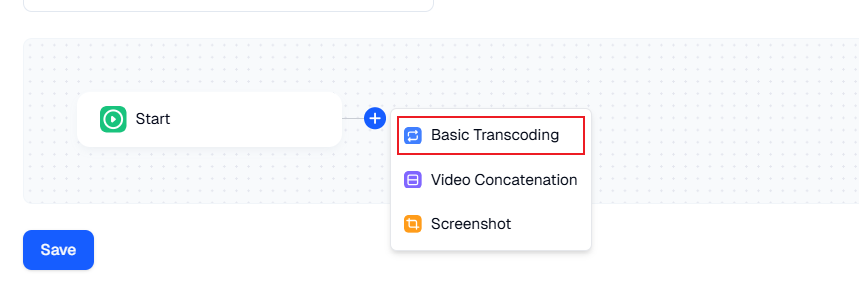
Click the plus icon on the right side of the node and select Normal Transcoding node from the drop-down list.
Click the transcoding node to enter the configuration page.
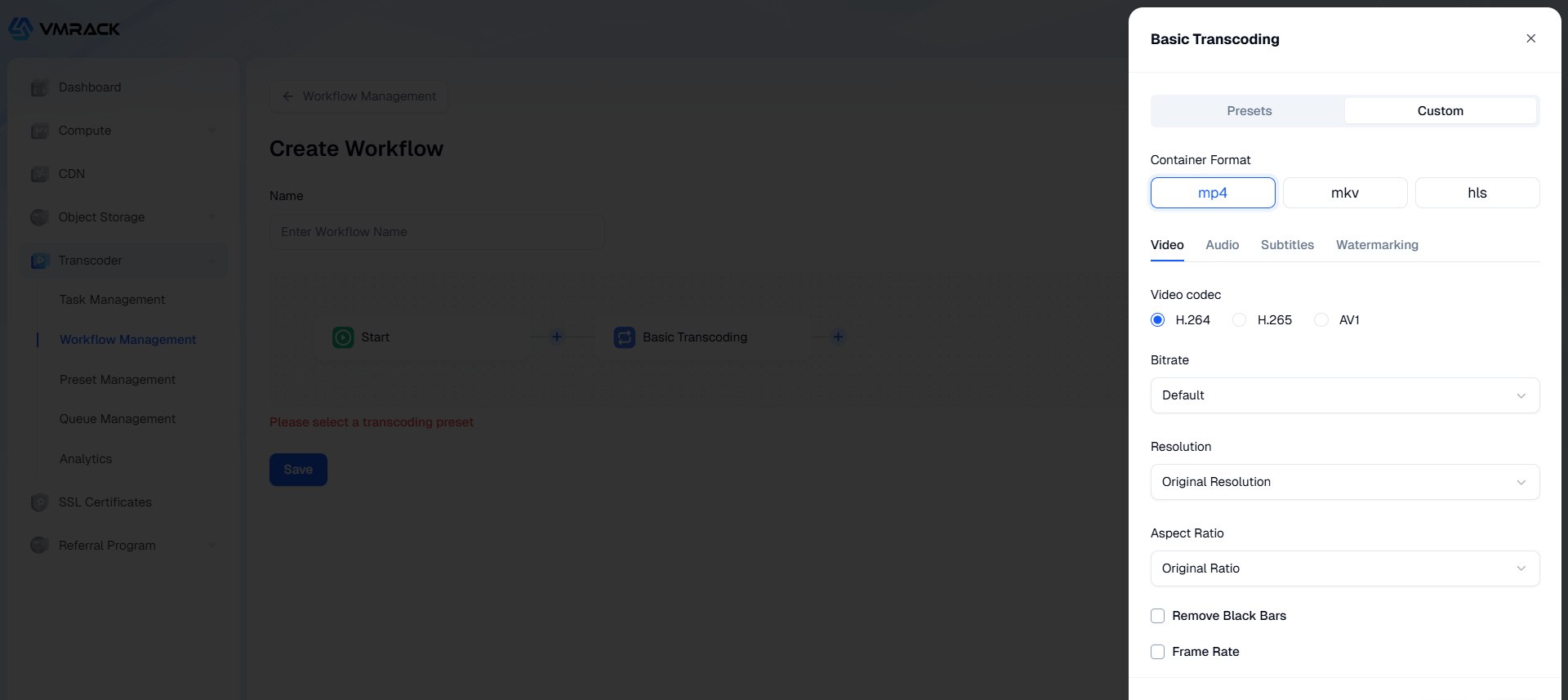
Configure Parameters:
Basic Parameters
Parameter | Description |
Preset | A template for processing parameters, which can be used to simplify operations. |
Container Format | Supports MP4, FLV, HLS. |
Video Parameters
Parameter | Description | |
Video Codec | Supports AV1, H.264, H.265. | |
Bitrate | Supports the following three bitrate control modes: | ]]></ac:plain-text-body></ac:structured-macro> |
Resolution | Supports two modes: | ]]></ac:plain-text-body></ac:structured-macro> |
Aspect Ratio | Effective when resolution is "Custom". Since the video aspect ratio may be different from the source video, supports two modes: | ]]></ac:plain-text-body></ac:structured-macro> |
Video Scaling | When the resolution selected by the user is non-original, the parameters can be configured. Supports two modes: | |
Remove Black Borders | Cannot be used when "Pad Black Borders" is selected. | |
Frame Rate | Number of frames displayed per second. Unit: Hertz (Hz). | ]]></ac:plain-text-body></ac:structured-macro> |
<ac:structured-macro ac:name="unmigrated-wiki-markup" ac:schema-version="1" ac:macro-id="ea71cade-f4aa-4e07-9fec-2931c9b489df"><ac:plain-text-body><![CDATA[ | Keyframe | Also known as the video keyframe interval (GOP). Value range [0, 3000] (integer). |
Segment Clip | If only a part of the source file is needed, you can choose to complete it by segment clipping. Specifies the Start Time and Clip Length. | |
Segment Duration | When the container format is HLS, the duration of slice files. Default is 10s if not set. |
Audio Parameters
Parameter | Description |
Disable Audio | Default is not enabled. When enabled, the audio stream will be removed from the transcoded video. |
Codec | Supports Original Codec, MP3, AAC, AAC_HE. |
Channels | Number of audio channels. Unit: Integer value. Supports two modes: |
Audio Bitrate | Supports two modes: |
Sample Rate | Audio sampling frequency. Supports two modes: |
Subtitle Parameters
Parameter | Description |
Disable Subtitles | Default is not enabled. When enabled, video subtitles (hard-coded subtitles in the video stream) will be removed. |
Add Subtitles | Supports adding: ssa, srt, ass type subtitles (utf-8 encoding and utf-8 BOM encoding). |
Watermark Parameters
Parameter | Description |
Watermark Type | Supports two types: Image Watermark, Text Watermark. |
Image Watermark | Supports: png, jpg, bmp, gif, apng formats. Within 5MB. |
Adaptive Scaling | Specifies the ratio of the watermark image's short side to the video's short side. Value is \[0, 1\]. Number supports three decimal places. |
Text Watermark | Supports setting Font, Font Size, Font Color attributes. |
Watermark Position | Relative position of the watermark in the video screen, default is Top Right. |
Horizontal Margin | Sets the relative horizontal offset of the watermark position. Positive indicates leftward, negative indicates rightward. |
Vertical Margin | Sets the relative vertical offset of the watermark position. Positive indicates downward, negative indicates upward. |
Watermark Timeline | Default is closed, watermark lasts from start to end. |
From Header | Watermark starts from the video header. |
From Tail (Reverse) | Watermark starts from the video tail. |
Video Splicing Node
Click the plus icon on the right side of the node and select Video Splicing node from the drop-down list.
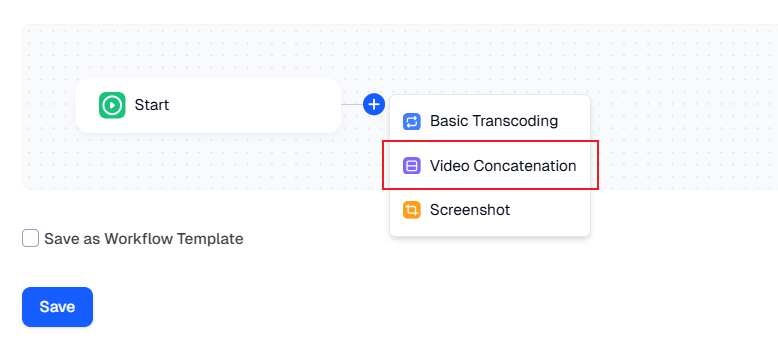
Click the video splicing node to enter the configuration page.
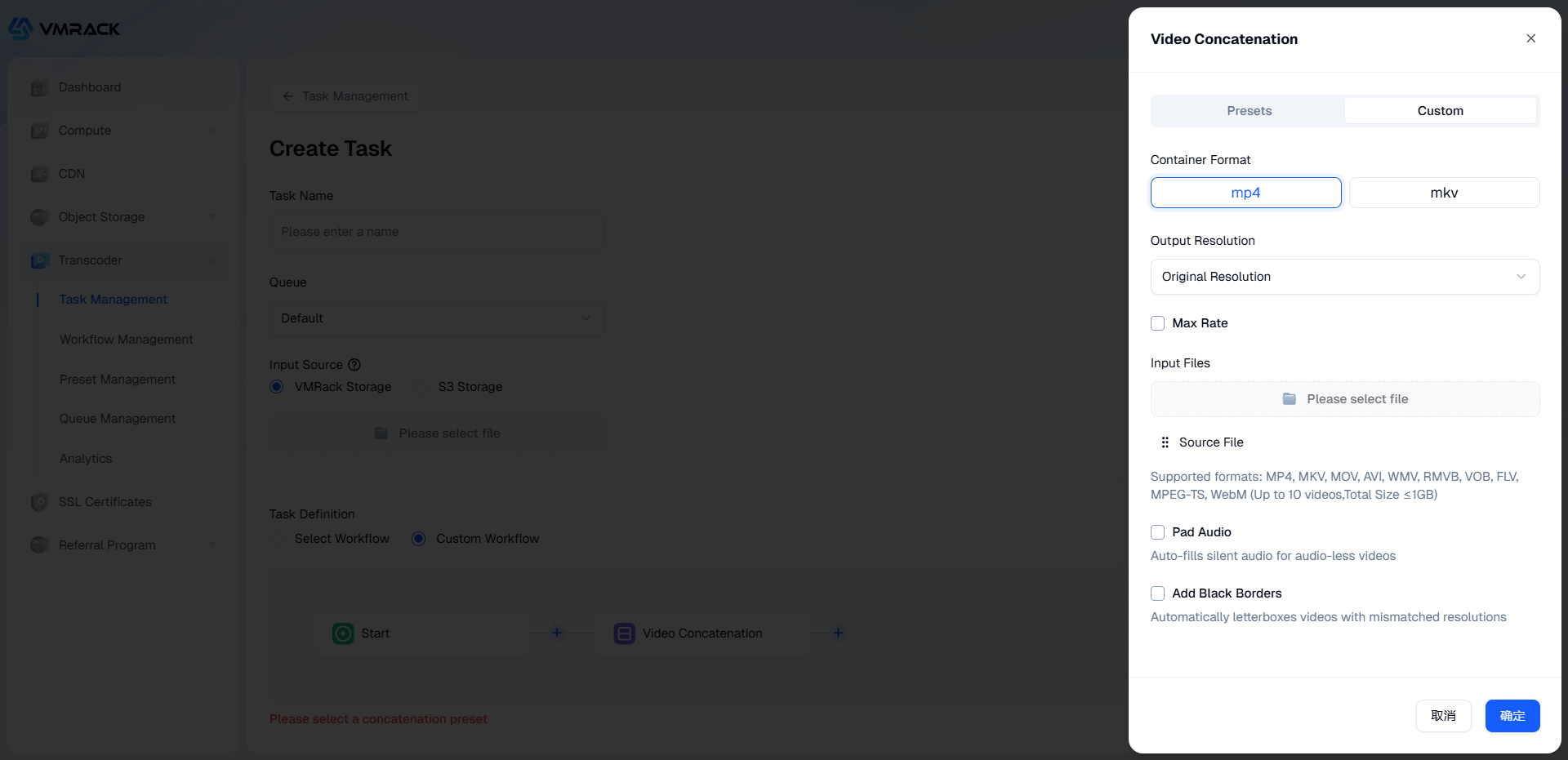
Set Parameters:
Parameter | Description | |
Preset | A template for processing parameters, which can be used to simplify operations. | |
Container Format | Supports MP4, MKV. | |
Output Resolution | Supports two modes: | ]]></ac:plain-text-body></ac:structured-macro> |
Peak Bitrate | Limits the peak bitrate of the output video stream. Unit: kilobits per second (kbit/s). Bitrate limit size is \[10, 10000\] (integer). | |
Splicing File | Supports: MP4, MKV, MOV, AVI, WMV, RMVB, VOB, FLV, MPEG-TS, WebM format files. Video duration does not exceed 10, total size within 1GB. | |
Audio Padding | When enabled, fills silence/audio into video files that lack an audio track during splicing. | |
Auto Padding | When video file resolutions are inconsistent, automatically adds black borders to the video for proportional scaling. |
Snapshot Node
Click the plus icon on the right side of the node and select Snapshot node from the drop-down list.
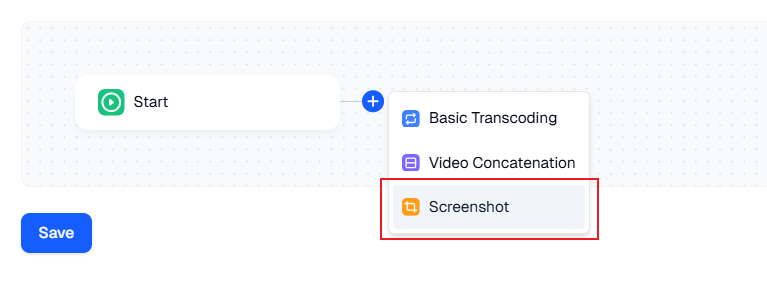
Click the snapshot node to enter the configuration page.
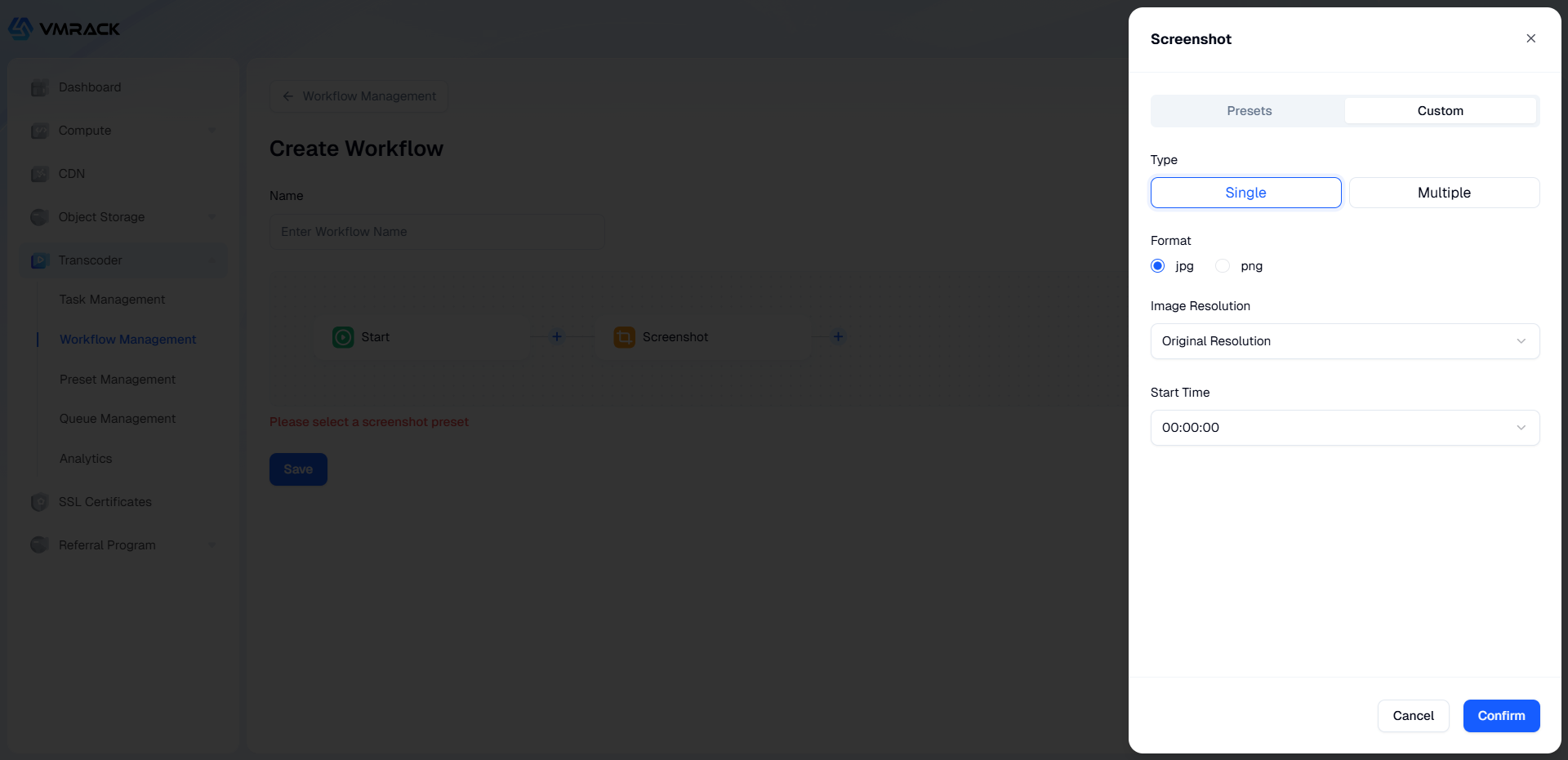
Set Parameters:
Parameter | Description | |
Preset | A template for processing parameters, which can be used to simplify operations. | |
Type | Supports two types: Single Snapshot, Multi-Snapshot. | |
Format | Output target snapshot format. Supports JPG, PNG. | |
Image Resolution | Supports two modes: | ]]></ac:plain-text-body></ac:structured-macro> |
Start Time | Specifies the timestamp to start capturing the video. Unit: Seconds. | |
End Time | Specifies the timestamp to end capturing the video. Unit: Seconds. | |
Interval | Default value is 5 seconds. Specifies sampling snapshot interval. Unit: Seconds. |
Output Node
Click the plus icon on the right side of the node and select Output node from the drop-down list.
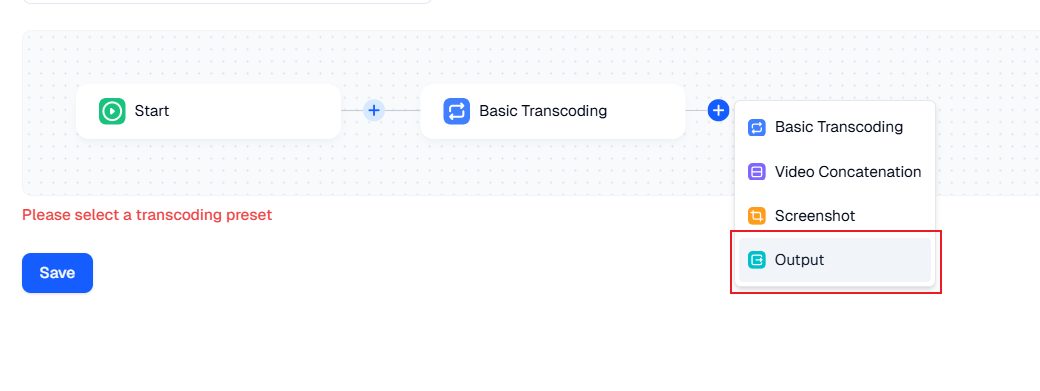
Click the output node to enter the configuration page.
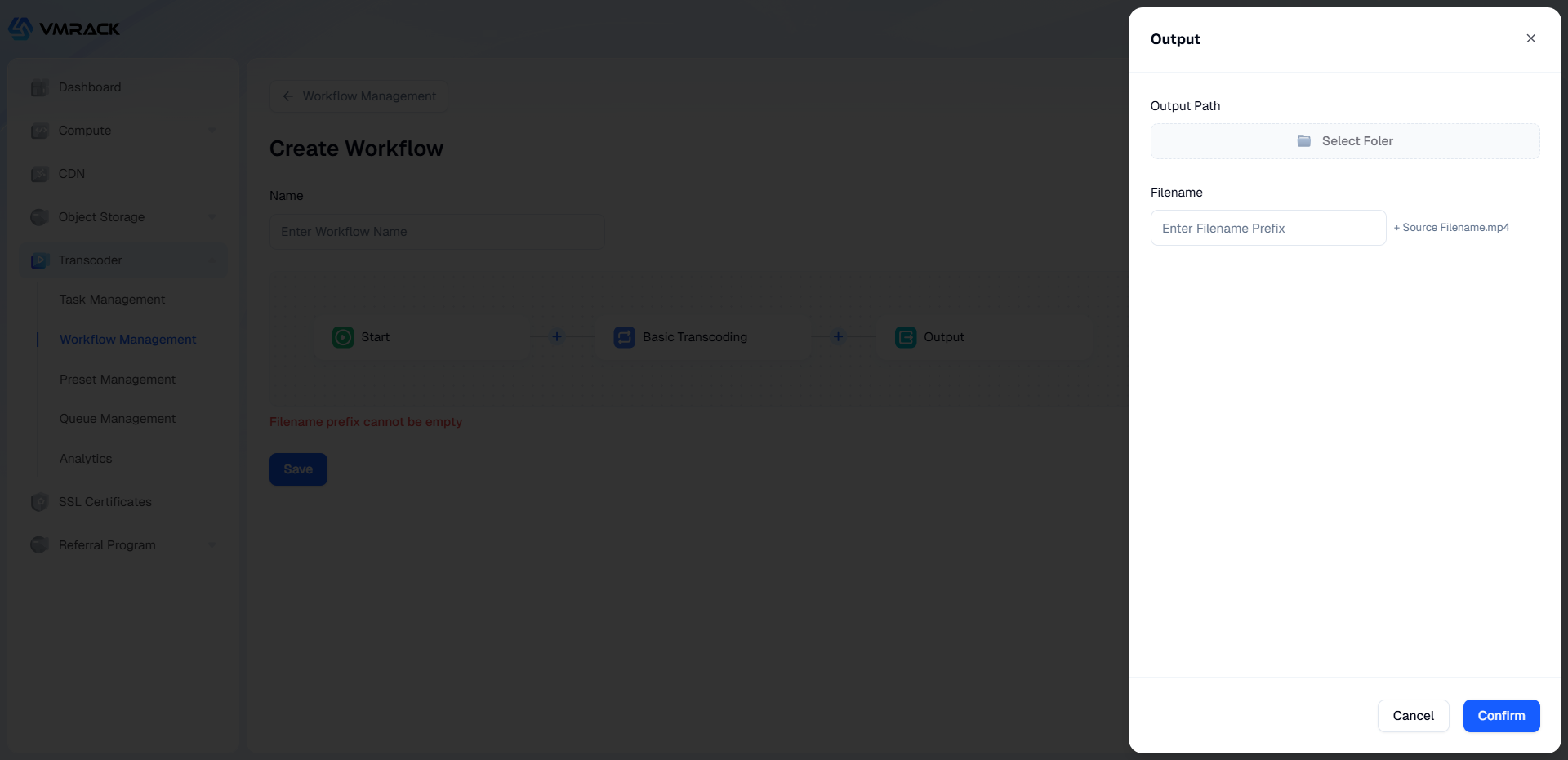
Set Parameters:
Parameter | Description |
Output Path | Select the path of the VMRack Object Storage bucket as the path to store the newly generated file after transcoding is completed. |
Output Filename | Supports Input Prefix + Source Filename. |
- Products
- VPS Hosting
- VPS HostingUnmetered
- Bare Metal
- GPU Rental
- CDNPublic Beta
- Custom CDN
- Object StoragePublic Beta
- TranscoderPublic Beta