
Quick Start
This chapter will guide you to quickly connect your business domain to VMRack CDN and enable acceleration services.
Login & Preparation
Before using the CDN service, you need to have a VMRack account.
Sign up / Log in: Visit the VMRack official website and log in to your account.
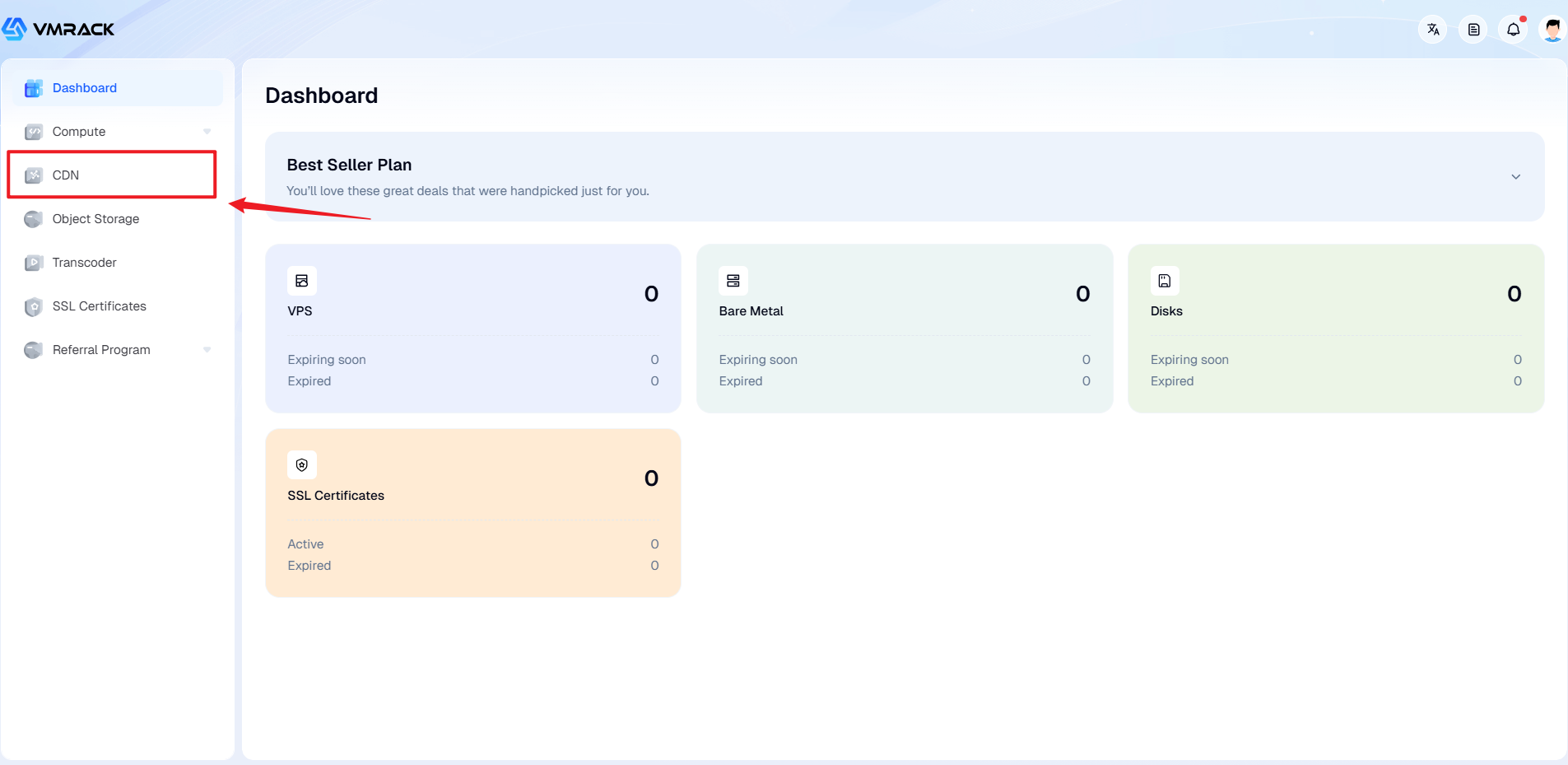
Enter Console: After logging in successfully, find the "CDN" menu in the product list on the left.
Have a domain: You need to own a domain name (e.g., example.com) and have DNS resolution authority for it (able to log in to the backend of DNS providers like Aliyun, GoDaddy, Cloudflare, etc.).
Activate Service
By default, the CDN service is inactive. You need to manually activate the service when using the CDN feature for the first time.
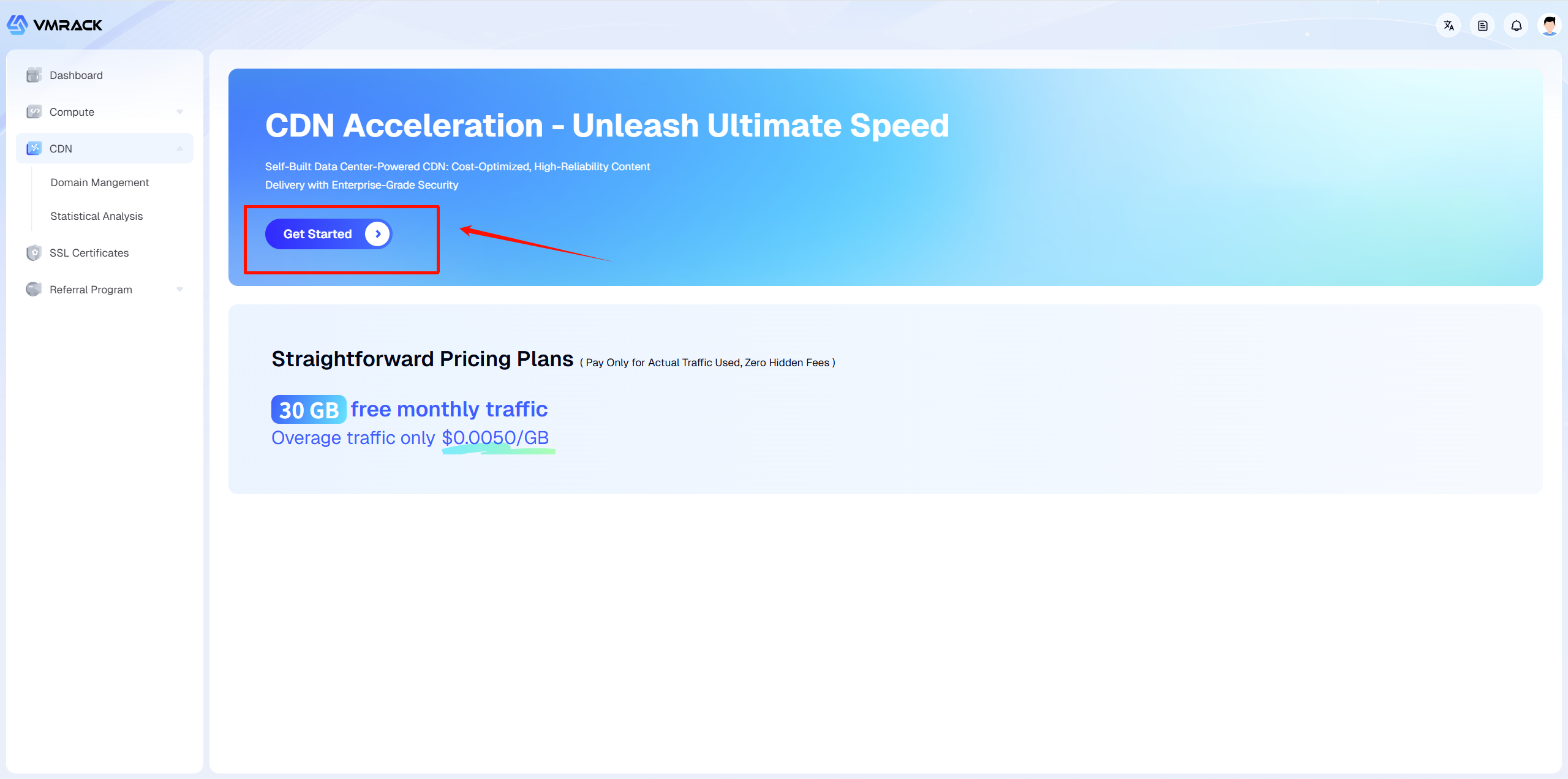
Click to Enter: Click the "CDN" menu, and you will see the service activation guide page.
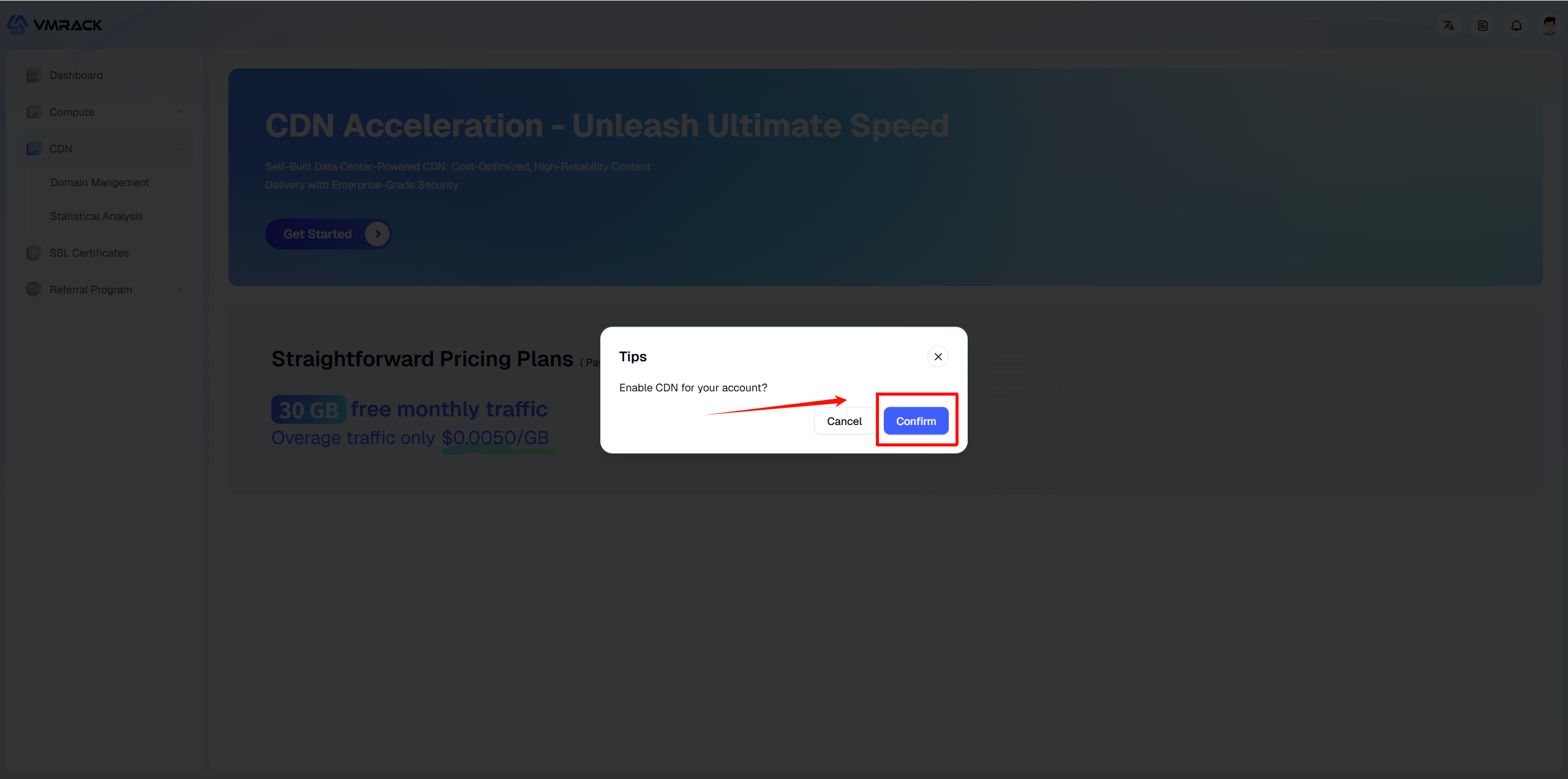
Activate Now: Click the "Get Started" button on the page.
Note: Activating the service means you agree to the Pay-As-You-Go agreement, Activation itself does not incur charges. Fees are deducted only after traffic is generated.
Add Accelerated Domain
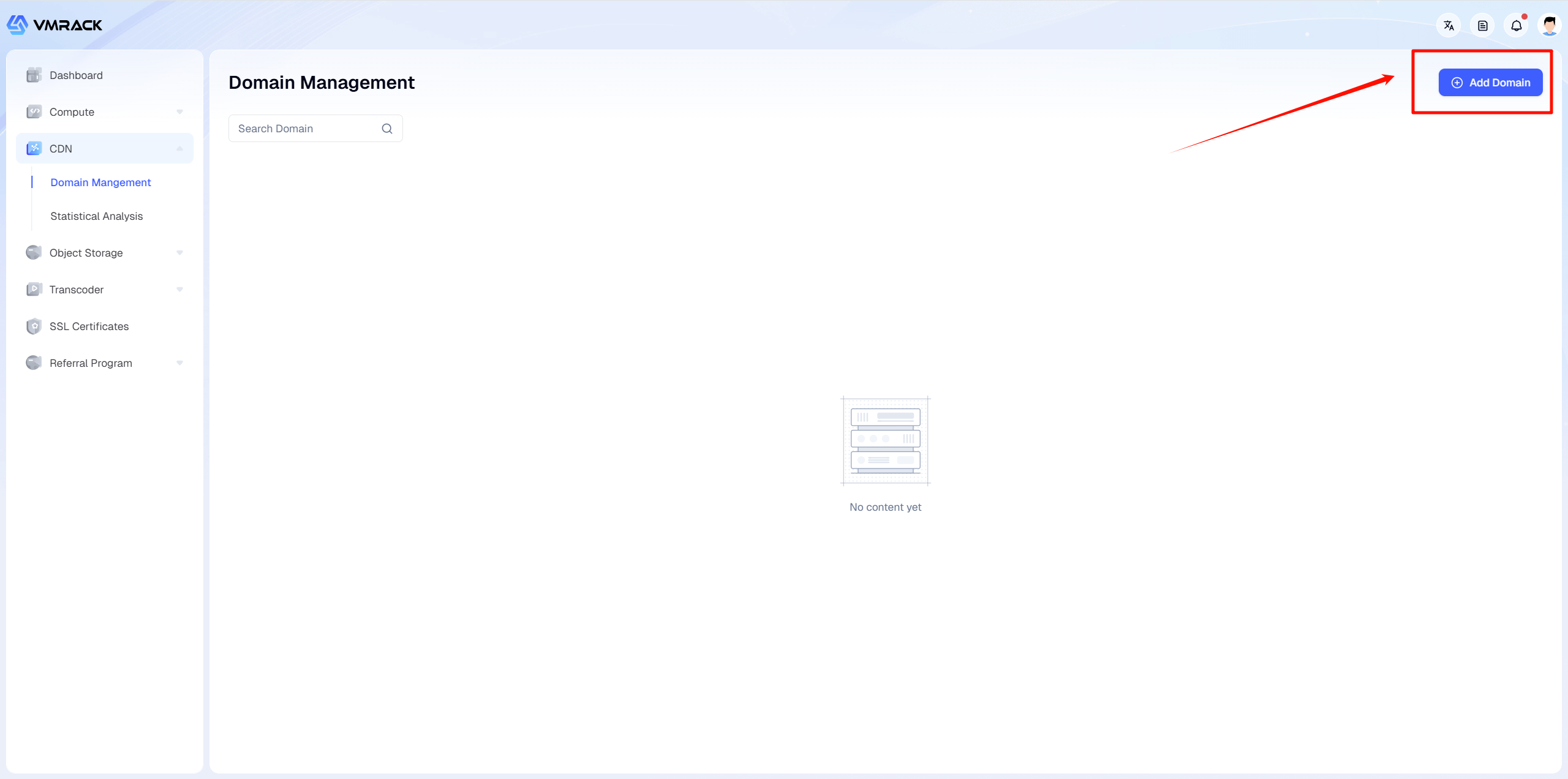
After the service is activated, you will enter the site management page.
Click the "Add Domain" button in the top right corner.
Fill in the following information on the configuration page
Configuration Item | Description | Example |
Domain | The website domain name you want to accelerate. | www.example.com |
Origin-pull Protocol | The protocol used by CDN nodes when fetching data from the origin server. | HTTPS |
Origin server configuration | Domain/IP: Enter the public IP address or domain name of the origin server. | IP: 1.2.3.4 |
Origin-pull HOST | Default Domain: Consistent with the accelerated domain. | Default Domain |
Configure CNAME Record
After adding the domain, CDN acceleration is not yet active. You must go to your DNS provider to add a CNAME record, pointing traffic to the address assigned by VMRack.
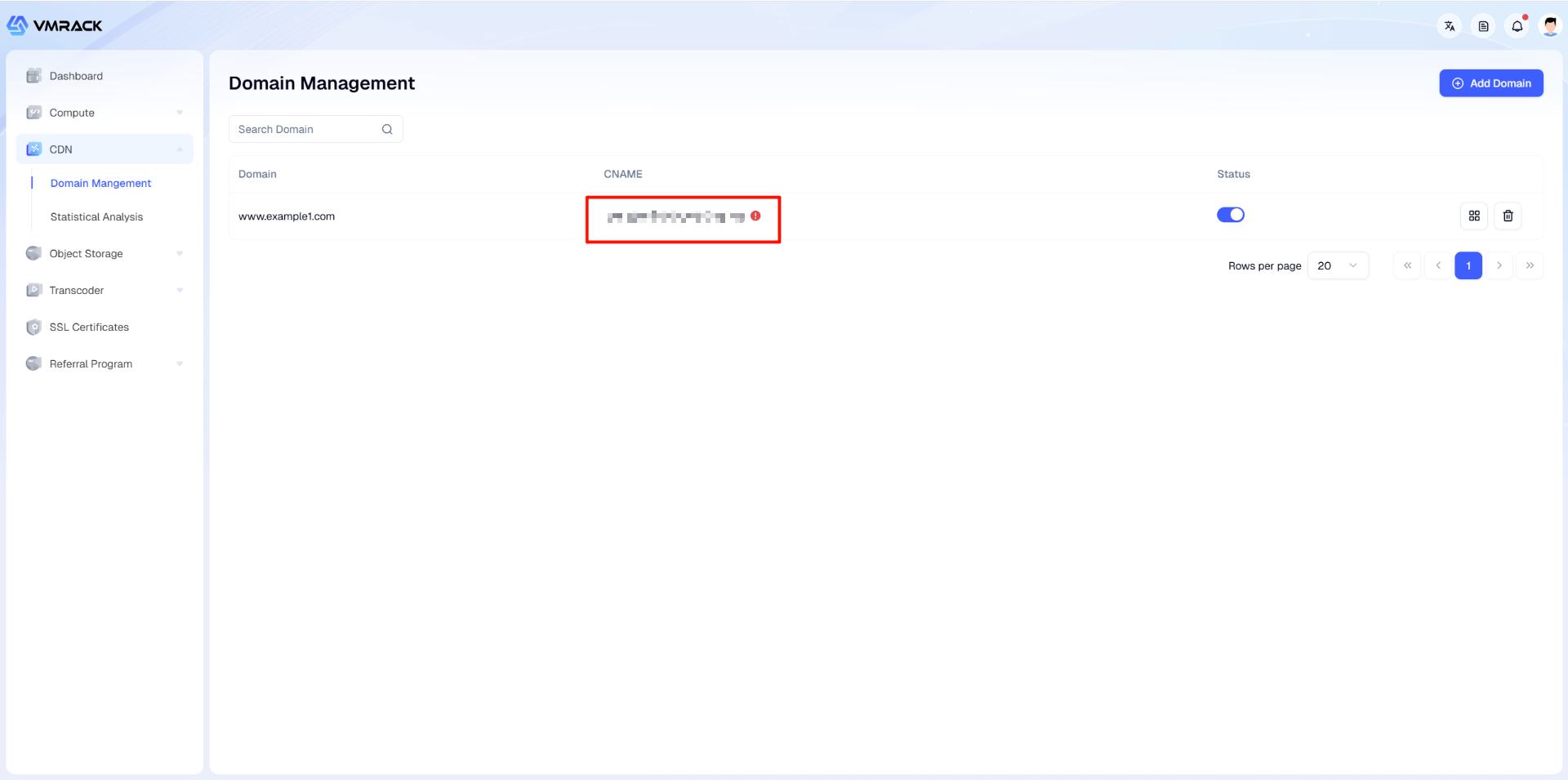
1.Get CNAME: In the VMRack CDN site management list, find the domain you just added and copy the system-assigned CNAME value.
2.Add DNS Record: Log in to your domain's DNS provider console (such as Aliyun DNS, DNSPod, Cloudflare, etc.) and add a record:
Type: Select CNAME.
Name/Host: Fill in your domain prefix (e.g., www).
Value/Target: Paste the CNAME value you just copied.
TTL: Keep default (e.g., Auto or 600).
Verify Effect
DNS resolution usually takes from a few minutes to tens of minutes to take effect. You can verify it in the following ways:
1.Console Status: Return to the VMRack CDN site management list and check the status icon of the domain.
CNAME [!]: Indicates that DNS has not yet taken effect or is configured incorrectly.
CNAME [✓]: Indicates successful resolution, and the CDN has started serving you.
2.Command Line Verification: Run the ping command in your computer terminal (e.g., ping www.example.com). If the returned IP address changes to the IP of a VMRack CDN node, it means acceleration has taken effect.
- Products
- VPS Hosting
- VPS HostingUnmetered
- Bare Metal
- GPU Rental
- CDNPublic Beta
- Custom CDN
- Object StoragePublic Beta
- TranscoderPublic Beta