
Quick Start Guide
This document is designed to help new users quickly understand and complete their first purchase, configuration, and basic management of a Bare Metal. You will be able to complete the entire process of owning a remotely accessible Bare Metal within 15 minutes.
Prerequisites
Have a registered VMRack account.
Purchase & Configuration
Visit the Bare Metal Product Page and click Get Started to enter the Bare Metal purchase page.
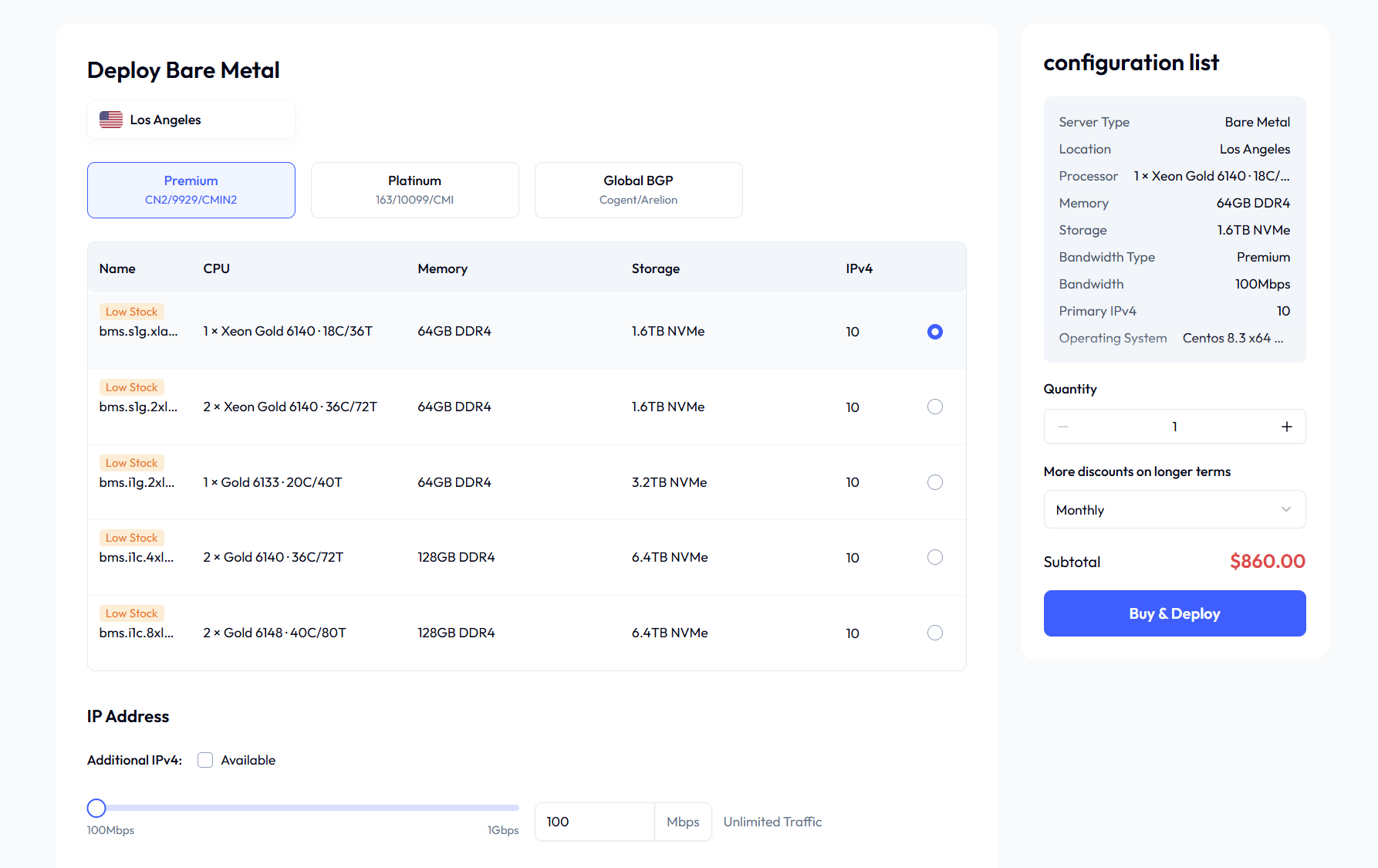
Bare Metal is purchased through pre-configured plans:
The system offers several predefined combinations of CPU, memory, storage, and network. You simply select the plan that best matches your needs and complete the payment quickly. This method is straightforward and ideal for rapidly deploying common scenarios.
During the Bare Metal purchase process, you will encounter the following core options. Please select your configuration based on the guidance below:
Configuration Item | Description & Selection Advice |
Region | The physical location of the server. Choose the region closest to you or your target users for the lowest network latency. |
Plan | A fixed combination of CPU, memory, storage, and bandwidth. |
IP Addresses | Additional IPv4 addresses are supported. 10 IPv4 addresses are provided by default, with a maximum of 200 configurable addresses. Additional IP addresses are billed separately. |
Network Bandwidth | Fixed dedicated bandwidth is provided with unlimited traffic, ensuring stable, high-speed network access. This is suitable for business scenarios with stable or high traffic volumes. Premium provides 100 Mbps by default, with speeds of up to 1 Gbps available; Platinum and Global BGP provide 1 Gbps by default, with speeds of up to 10 Gbps available. |
Image | The operating system you require, for example: Linux: CentOS 7.x/8.x or Ubuntu 20.04/22.04 Windows: Windows Server 2019 |
Login Credentials | You need to set the authentication method for logging into the server. Please be sure to remember your choice: • Set Password: Create a strong password for the system's default administrator account. - Linux: Username is root. - Windows: Username is Administrator. • Associate SSH Key (Linux instances only): A more secure login method. - If you already have a key pair, select it here for association. - If not, you can create one in the SSH Keys menu within the console. |
Confirm Order & Payment: Review all configurations and costs, then complete the payment.
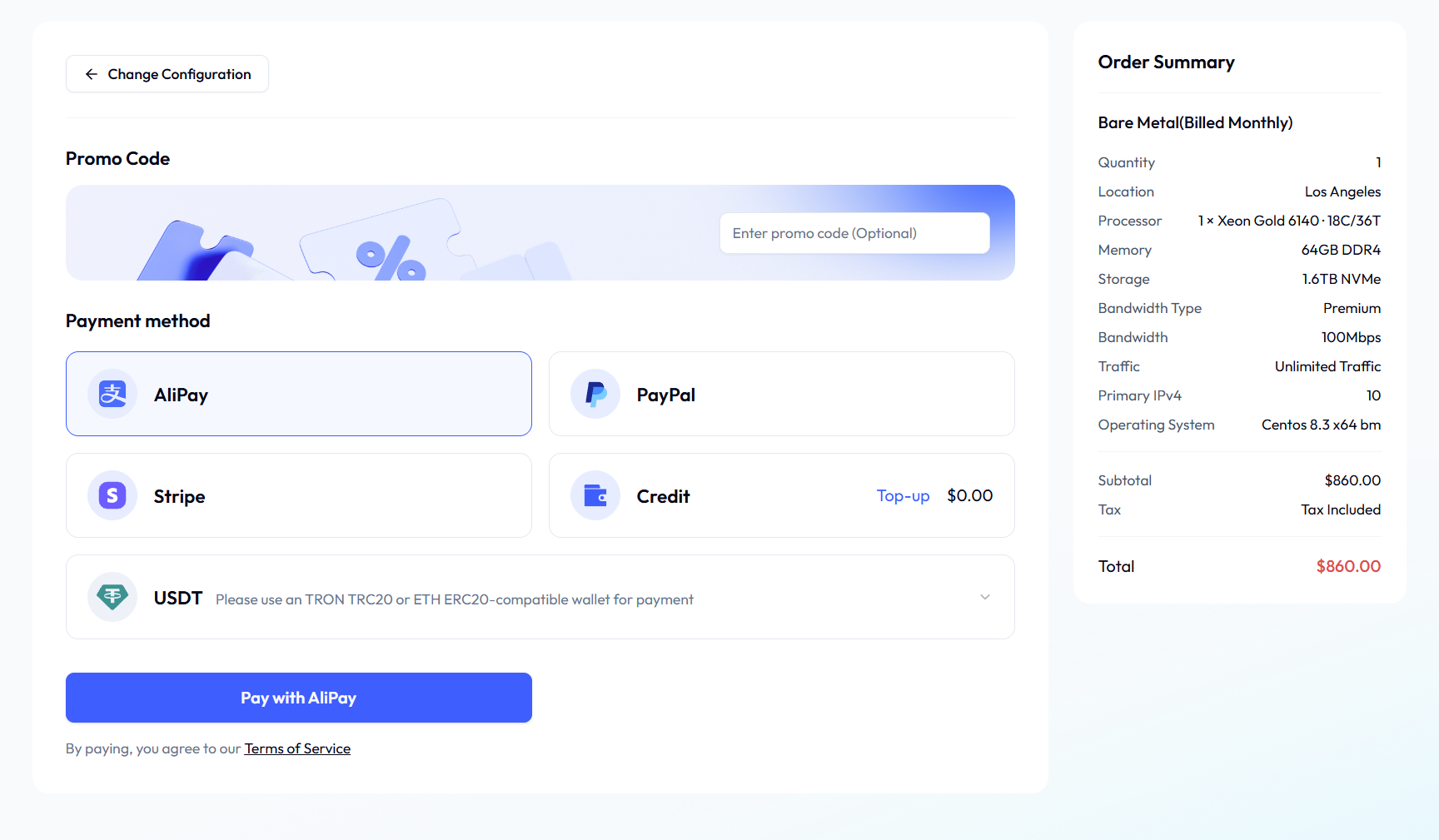
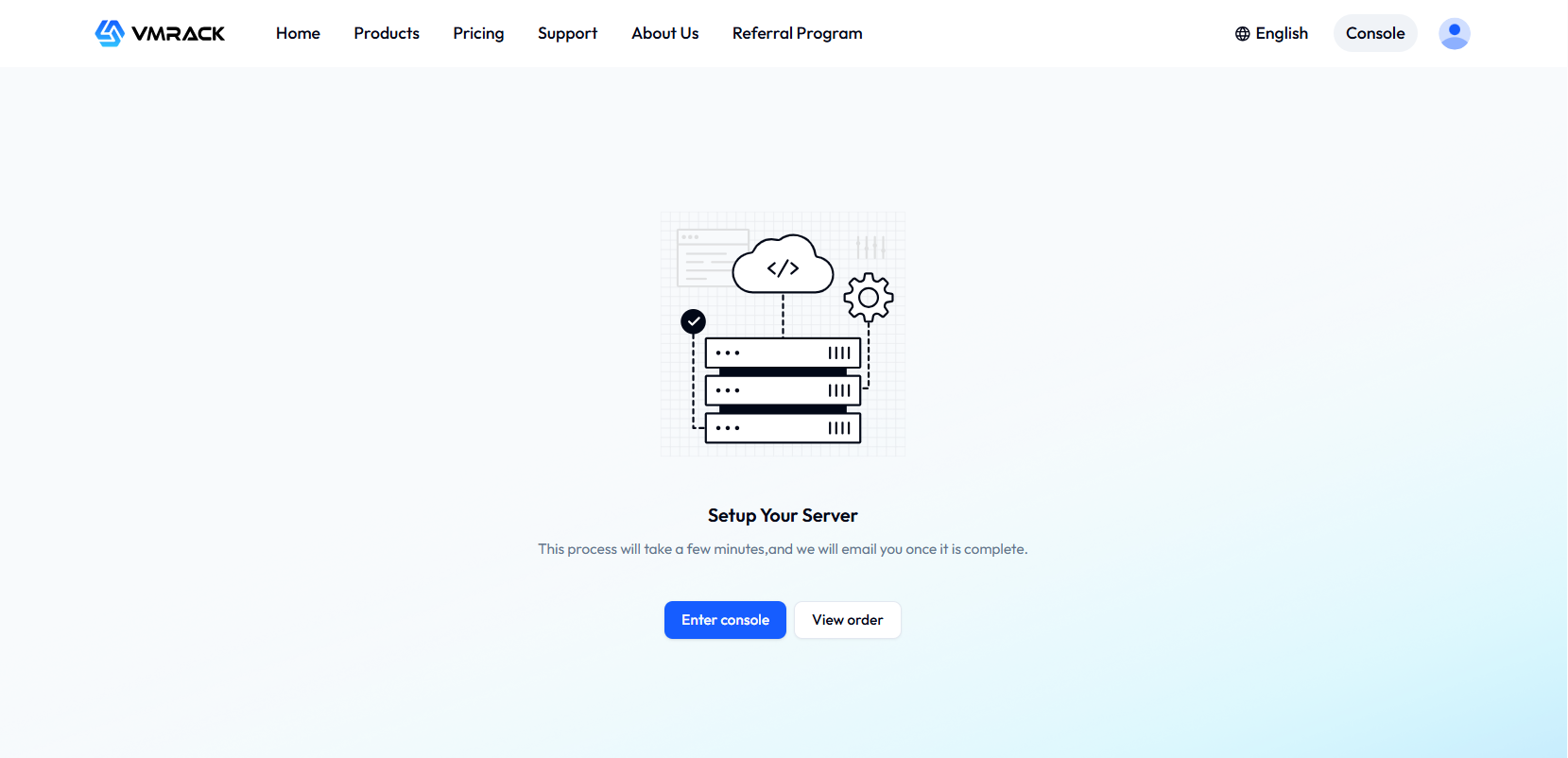
Once your payment is processed, you can proceed to the Bare Metal list in the console to view your instance. The instance is typically provisioned and ready within 10 minutes.
Connecting to Instance
After the instance is successfully created, you can log in to your Bare Metal server using methods such as SSH connection or Remote Desktop connection.
Connecting to Linux Instance via SSH
Password Login
1. Run the following command to connect to the Linux Bare Metal instance.
If your local computer is a Mac OS system, you need to open the system's built-in Terminal first, then execute the following command. If your local computer is a Linux system, you can directly execute the following command. If your local computer is a Windows 10 or Windows Server 2019 system, you need to open the Command Prompt (CMD) first, then execute the following command.
ssh <username>@<hostname or IP address>
username is the default account obtained in the prerequisites. The Linux instance administrator account is usually root by default, while Ubuntu systems default to ubuntu. Please modify this based on the actual situation. hostname or IP address is the public IP or custom domain name of your Linux instance.
2. Enter the password for the Bare Metal instance, press Enter, and the login will be completed.
SSH Key Login
1. Execute the following command to set the private key file to be readable only by the owner.
If your local computer is a Mac OS system, open the system's built-in Terminal first, then execute the following command.
If your local computer is a Linux system, you can directly execute the following command.
chmod 400 <absolute-path-to-your-downloaded-bare-metal-private-key>
If your local computer is a Windows 10 system, open the Command Prompt (CMD) first, then execute the following commands in sequence.
icacls <absolute-path-to-your-downloaded-bare-metal-private-key> /grant <Windows-system-user-account>:F
icacls <absolute-path-to-your-downloaded-bare-metal-private-key> /inheritancelevel:r
2. Execute the following command to initiate the remote login.
ssh -i <absolute-path-to-your-downloaded-bare-metal-private-key> <username>@<hostname or IP address>
username is the default account obtained from the prerequisites.
hostname or IP address is the public IP or custom domain name of your Linux instance.
For example, execute the command ssh -i "Mac/Downloads/shawn_stable.pem" <username>@<IP Address> to log in remotely to the Linux Bare Metal instance.
Connecting to Windows Instance via Remote Desktop
The following steps use Windows 7 as an example.
1. On your local Windows computer, click windows, type mstsc in the "Search programs and files" box, and press Enter to open the Remote Desktop Connection dialog box, as shown below:
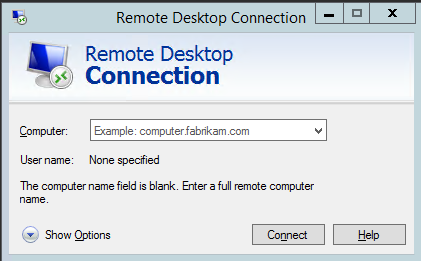
2. In the Computer field, enter the public IP address of the Windows server and click Connect.
3. In the Windows Security pop-up window, enter the instance's administrator username and password. The default administrator account for a Windows Bare Metal instance is Administrator.
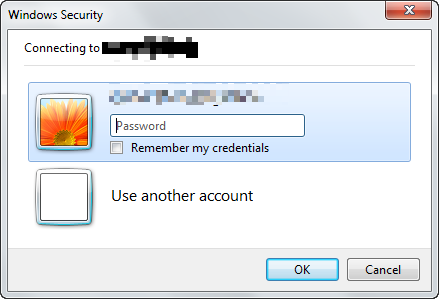
4. Click OK to log in to the Windows instance.
- Products
- VPS Hosting
- VPS HostingUnmetered
- Bare Metal
- GPU Rental
- CDNPublic Beta
- Custom CDN
- Object StoragePublic Beta
- TranscoderPublic Beta