
Task Management
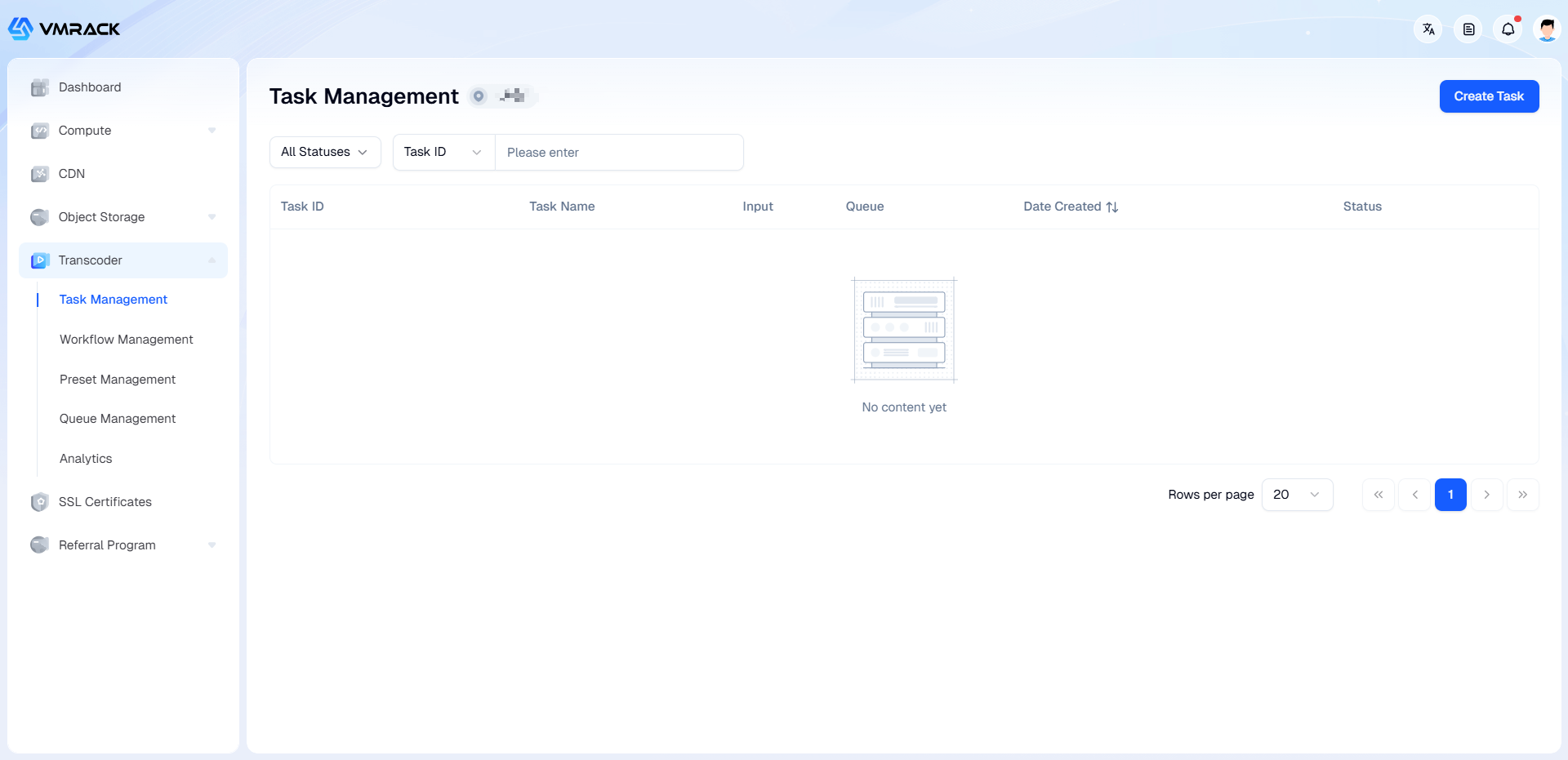
In the Task List, you can view the processing results and progress of tasks.
Log in to the Transcoder Console, and click Task Management in the left menu bar to enter the Task List.
Prerequisites
Some settings need to be performed before use to ensure proper functionality. If already set, please ignore.
Upload Video: Upload the video requiring transcoding to VMRack Object Storage. If your video files are stored in other public cloud storage products (AWS S3 or compatible storage), you can provide the file download URL as the input source, but the output still requires using VMRack Object Storage.
(Optional) Configure Workflow: Define the processing flow for the video, such as transcoding, snapshot, video splicing, supporting serial and parallel operations. You can customize the arrangement into a complete processing flow.
(Optional) Configure Preset: A set of templates for processing parameters, such as transcoding presets, watermark presets, snapshot presets, and video splicing presets. You can use presets to simplify operations when creating transcoding tasks or using workflows.
Operation Flow
Log in to the Transcoder Console, click Task Management in the left menu bar to enter the Task List.
Click the Create Task button to enter the task creation page.
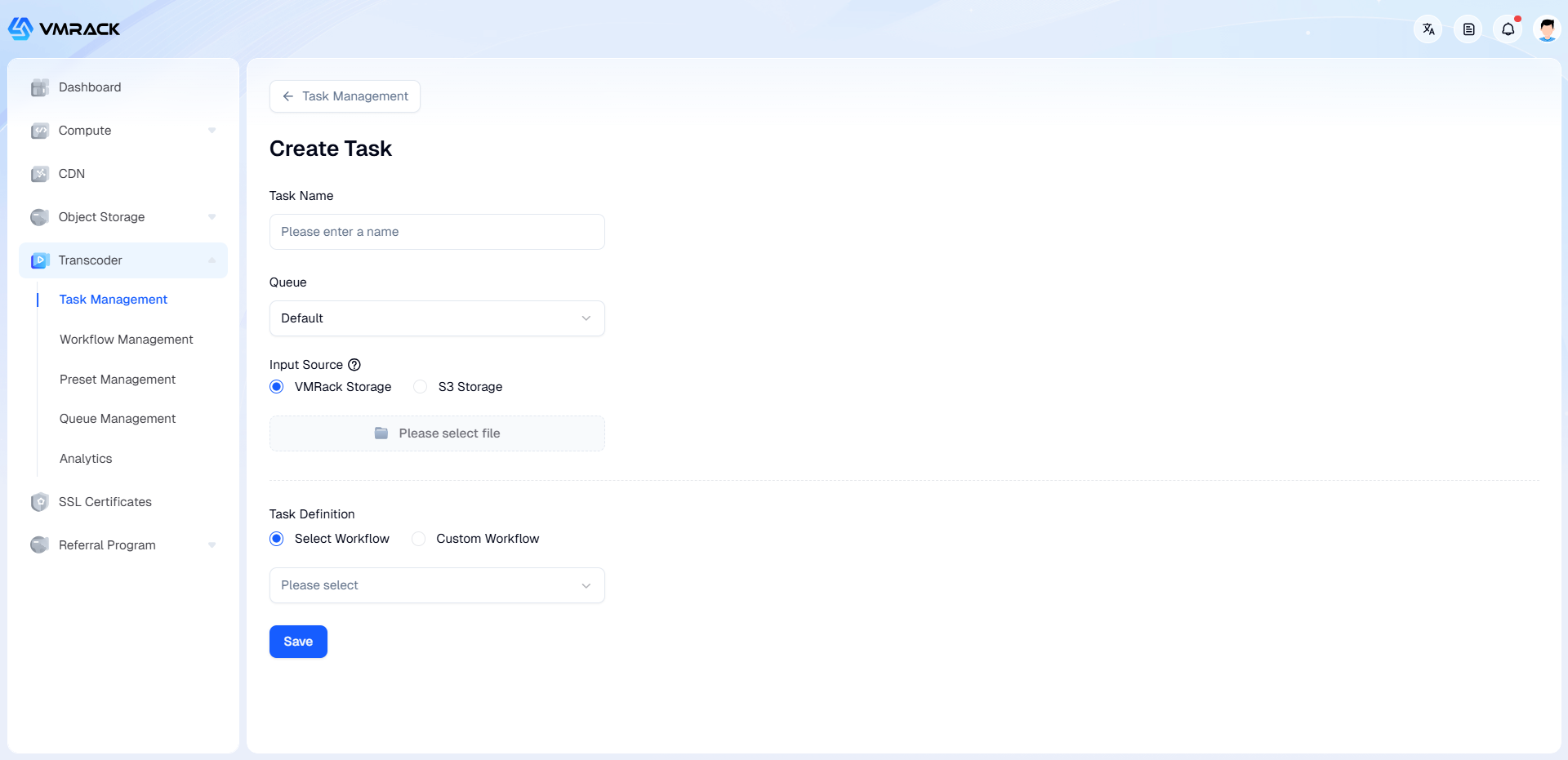
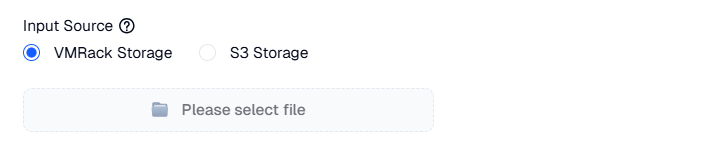
Specify Input Source File: Select the audio/video file to be transcoded as the input source.
Select from VMRack Object Storage: Select the video file from the storage bucket.
Select AWS S3 or compatible storage video file: You need to fill in the corresponding secret keys, bucket name, region, file path, and other information.
Specify Queue:
If you need to execute transcoding tasks in order of priority and submission sequence, you can create queues with different priorities in Queue Management, and then specify the queue when creating the transcoding task.
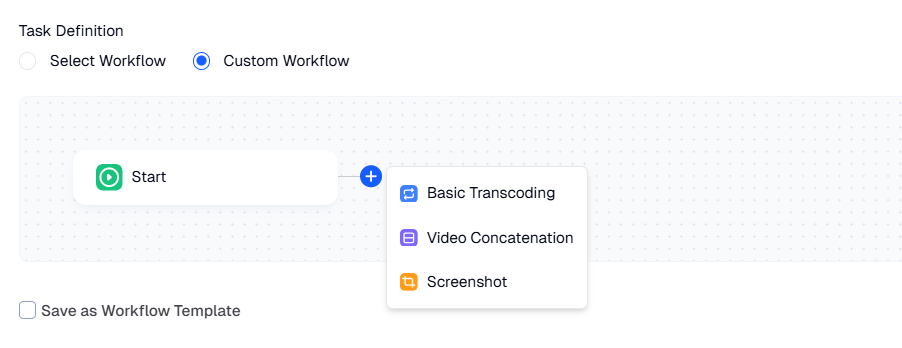
Set Workflow: There are 2 ways to set up the workflow:
Workflow Template: Select a pre-built workflow template from the drop-down list. This helps you quickly initiate task processing requests, reduce repetitive work, and unify business processing flow standards.
Custom Workflow: You can customize and arrange a complete process. For specific operation steps and descriptions, please refer to Workflow Management.
Click the Save button. After the task is successfully created, it will automatically return to the Task List, where you can view the task processing result, progress, and details in the list.
- Products
- VPS Hosting
- VPS HostingUnmetered
- Bare Metal
- GPU Rental
- CDNPublic Beta
- Custom CDN
- Object StoragePublic Beta
- TranscoderPublic Beta