The VPS IP can be pinged but cannot access the internet?
If the server IP address can be pinged normally, it indicates that the network link itself is connected. However, the server cannot access external websites, update software packages, or even make any network requests other than through web pages. This phenomenon of "VPS IP can be PINGed but cannot access the internet" is very common because Ping is usually considered an important criterion for judging whether the network is working properly. In reality, Ping only verifies connectivity at the ICMP protocol layer and does not mean that other network functions such as HTTP, DNS, and routing are functioning normally as well. Starting from common causes, this article will help you systematically troubleshoot and resolve this issue.
1. Troubleshooting Common Reasons Why VPS Cannot Access the Internet
When encountering a situation where the VPS cannot access the internet, the first thing to check is whether DNS resolution is working properly. You can try comparing ping www.google.com with ping 8.8.8.8: if only the IP address can be pinged but the domain name cannot be resolved, the problem lies in the DNS configuration. You can check whether the DNS server address in the /etc/resolv.conf file is correct, or try replacing it with public DNS servers such as 8.8.8.8 or 1.1.1.1 for testing. It should be noted that on some systems, after restarting network services or updating system packages, /etc/resolv.conf may be automatically overwritten with default values, causing previously manually configured DNS addresses to fail. This is a detail that many users overlook during troubleshooting; it is recommended to use chattr +i /etc/resolv.conf to lock the file after modification to prevent accidental overwrites.
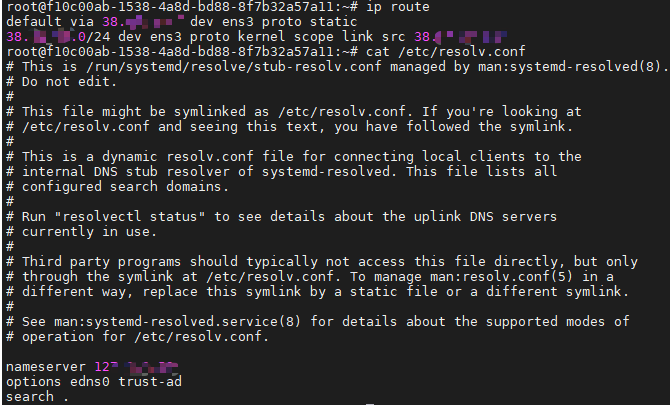
Secondly, you need to confirm whether the gateway configuration is correct. You can use the ip route or route -n command to check whether the default route exists and points to the correct gateway address. If the default route is missing or misconfigured, the server can respond to Ping requests within the same subnet, but cannot forward data packets to external networks. In addition, unsynchronized system time with actual time may cause HTTPS certificate validation failures, creating the illusion of "connected but abnormal access." It is recommended to use the ntpdate or chronyd service to synchronize system time before testing. If all the above configurations are verified to be correct, you can also check whether the network interface is in a normal UP state. Some VPS instances may not enable the network interface automatically after a system reboot or kernel update; you can quickly verify this using the ip link show command.
2. Deep-Dive Reasons Why VPS Can Be PINGed but Web Pages Won't Open
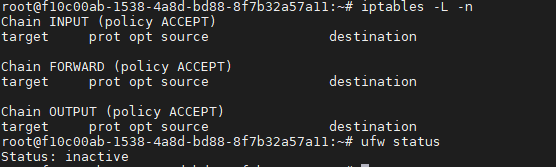
If you confirm that DNS and routing are normal, but VPS can be PINGed but web pages won't open, the problem usually lies in firewall rules or port restrictions. The ICMP protocol (used by Ping) and the TCP protocol used by HTTP/HTTPS are completely independent. Many firewall policies only allow ICMP requests while unintentionally blocking outbound or inbound traffic on common ports like 80 and 443. At this time, you can use the iptables -L -n or ufw status command to view current firewall rules and confirm whether relevant ports are restricted. If you are using a security group provided by a cloud service provider's control panel, you also need to log into the backend to check if outbound and inbound rules have opened the necessary ports. When installing control panel software (such as BaoTa/AaPanel), the system automatically generates an extra set of iptables rules, which can easily conflict with existing configurations and cause ports to be accidentally blocked. It is recommended to check the source of each rule step by step to avoid duplicate or contradictory policies.
Additionally, improper MTU (Maximum Transmission Unit) settings may also cause larger data packets to be dropped or fail during fragmentation during transmission. This manifests as small data packets (such as Ping) transmitting normally, while high-volume requests like web page loading and file downloads continuously time out. You can try temporarily adjusting the MTU to 1450 or lower to test if service is restored. If adjusting MTU still does not solve the problem, you can also check whether the local Web service is listening on 0.0.0.0 rather than 127.0.0.1, because some applications default to binding only to the local loopback address. Even if the port is open, external requests still cannot reach the corresponding service, which is another common reason why "web pages won't open."
3. How VMRack Self-Built Data Center Ensures VPS Network Stability
Apart from server configuration issues, network link quality and data center infrastructure are also critical factors affecting VPS connectivity stability. The VMRack self-built data center is located in Los Angeles. Relying on EasyLink's more than 12 years of industry operation and maintenance experience, it has complete autonomous resource control over its network architecture. It can finely tune various lines such as Premium Triple-Carrier (CN2 GIA, AS9929, CMIN2), Optimized Triple-Carrier (163, 10099, 4837, CMI), and US Native (Cogent, Arelion), fundamentally reducing connectivity issues caused by route fluctuations or line anomalies. Meanwhile, the data center is equipped with over 200Gbps of free DDoS protection capacity, which can effectively defend against network disruptions caused by abnormal attack traffic, avoiding situations where the IP is pingable but business services fail to respond.
If the problem persists after users complete the above troubleshooting steps on their own, they can also contact VMRack's technical support team to further pinpoint whether it is a link-side issue or an internal host configuration issue via tickets or backend assistance.
Summary
The issue where VPS IP can be PINGed but cannot access the internet is usually not caused by a single factor, but is the result of the combined effects of DNS resolution, routing gateways, firewall ports, MTU settings, and other links. By systematically troubleshooting the above configurations and combining them with a stable and reliable data center network environment, users can quickly locate the problem and restore normal network access capability to the VPS.


- Products
- VPS Hosting
- VPS HostingUnmetered
- Bare Metal
- GPU Rental
- CDNPublic Beta
- Custom CDN
- Object StoragePublic Beta
- TranscoderPublic Beta