What to do if the cloud server can be pinged but cannot be connected via SSH?
When a cloud server experiences a situation where it can be pinged but SSH cannot connect, it indicates that the network layer (ICMP protocol) is working normally and the server is powered on and running. Such failures are usually caused by blocked transport layer ports, system internal security policy interceptions, or SSH service configuration anomalies.
As a cloud infrastructure service provider built on high-performance AMD processors and relying on a self-built Los Angeles data center, VMRack is always committed to providing users with a smooth experience comparable to dedicated servers. To help you precisely locate the issue when encountering such remote obstacles, we have specially compiled this highly practical technical guide. Through the following three core steps, you can clear the mist step by step and completely resolve this troubling issue.
1. Check Cloud Platform Security Groups and Local Port Connectivity
After ruling out physical network failures, the first step is to confirm whether external security policies are blocking TCP port 22. This is one of the main reasons why the client prompts that SSH cannot connect.
Users need to log in to the VMRack console and check the security group (Security Group) or network ACL rules belonging to the instance. Ping operations use the ICMP protocol, while the SSH protocol relies on TCP port 22. If the inbound rule of the security group does not allow TCP port 22 to pass, all remote connection requests will be dropped at the network boundary. During testing, the source IP can be temporarily set to 0.0.0.0/0 to verify whether it is blocked by the security group.
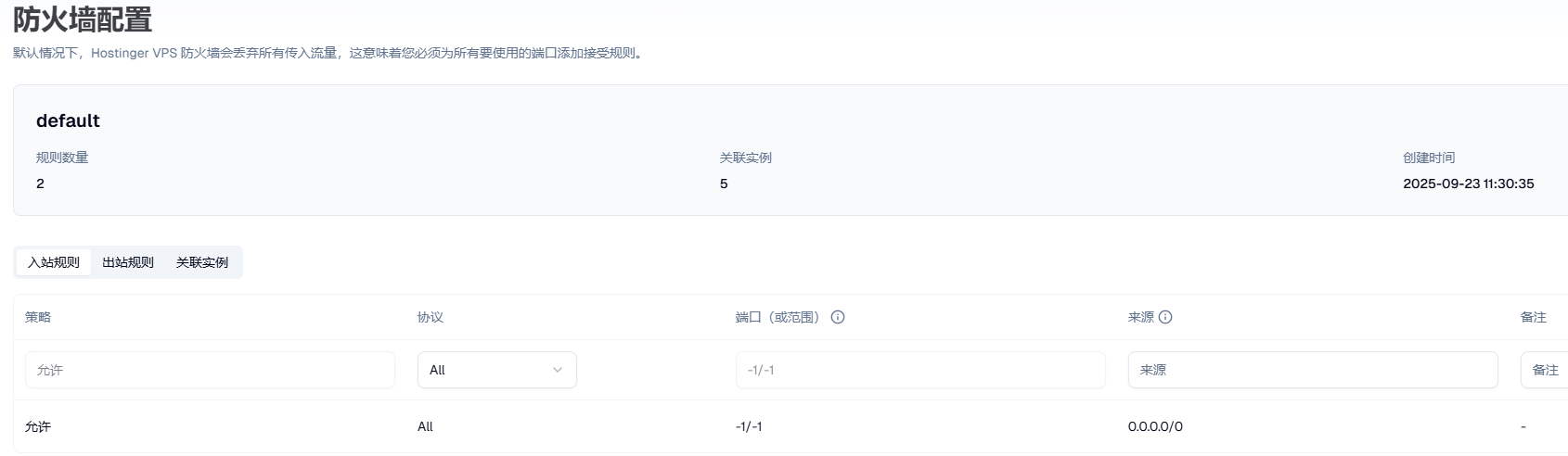
At the same time, it is necessary to confirm whether there are outbound port restrictions in the local network environment. Some corporate intranets or public networks block non-standard web ports. Users can execute telnet Server_Public_IP 22 in the local terminal. If a connection timeout is displayed, it is recommended to switch to an external network environment such as a mobile hotspot for cross-testing to rule out the impact of local network policies.
2. Check Server SSH Service Status and System Firewall
If the external network policy configuration is correct, you need to enter the operating system to check the service running status and internal firewall policies. VMRack provides 24/7 uninterrupted power supply and intelligent monitoring to ensure the stability of the infrastructure, but internal system configurations still require manual compliance.
When the external ports are unobstructed, failures where SSH cannot connect due to internal system reasons are also relatively common. The virtualization environment optimized based on high-performance AMD processors by VMRack provides continuous computing power at the underlying level. However, if the SSH daemon (sshd) inside the operating system stops running due to memory overflow, configuration conflicts, or policy interception, the client's connection request will also be directly rejected by the system.
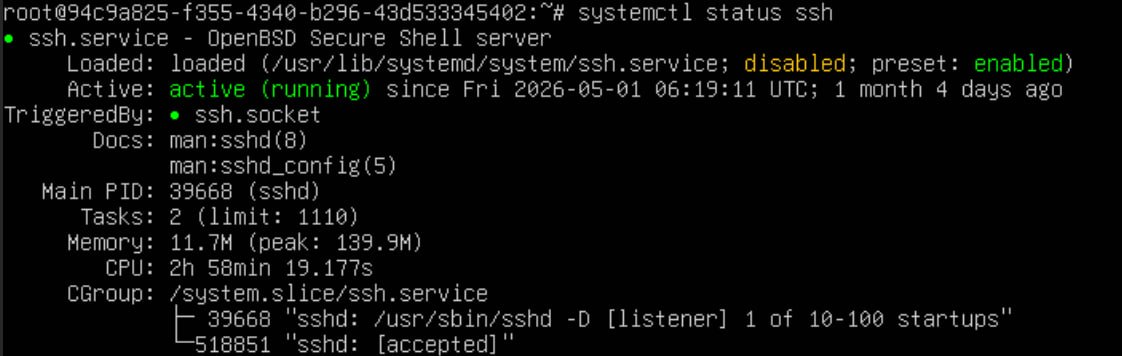
Since conventional remote channels cannot establish a connection at this time, users need to use the VNC Remote Connection (WebTerminal) function provided by the VMRack console to log in to the server. After logging into the system, execute systemctl status sshd (for Debian/Ubuntu systems, it is systemctl status ssh) to view the process status. If the service is stopped, execute systemctl start sshd to restart it. Meanwhile, run ss -ntlp | grep ssh to confirm whether the actual port listened to by the service has been modified.
In addition, it is necessary to check the blocking rules of the system's built-in firewall. firewalld in CentOS or ufw in Ubuntu may restrict port 22 by default. O&M personnel can temporarily turn off the firewall by running systemctl stop firewalld or ufw disable for connectivity testing. If the connection is restored after closing, a permanent rule allowing TCP port 22 to pass must be appended to the firewall.
3. Check SSH Configuration File and Analyze Security Logs
When both the network and ports are clear, but the connection request is still rejected by the server, the cause of the failure is usually concentrated in the system security configuration file (sshd_config) or the IP access blacklist.
Open the /etc/ssh/sshd_config configuration file via the VNC terminal and check the following key security parameters:
PermitRootLogin: If you need to log in as the root user, this item must be configured asyes.PasswordAuthentication: If password authentication is used, ensure this item is not set tono.
If any modifications are made to this file, you must execute systemctl restart sshd to restart the service for the changes to take effect.
In addition, the internal /etc/hosts.deny file of the system and third-party security tools (such as fail2ban) may blacklist the user's local public IP due to multiple password errors. O&M personnel can view the system security logs (/var/log/secure for CentOS, /var/log/auth.log for Ubuntu) to obtain specific rejection reasons and error codes, and make targeted adjustments accordingly.
Conclusion
Aiming at the failure where the cloud server can be pinged but SSH cannot connect, O&M personnel should follow a standard troubleshooting process from the outside in. First, confirm whether the cloud platform security group opens TCP port 22; second, verify the internal SSH service status and system firewall policy through the VNC console; finally, check the access permission configuration of the sshd_config file.
- Troubleshooting and solutions for SSH connection failures to remote servers
- What are the methods for remotely connecting to a server via SSH?
- What to do if SSH connection fails?
- Cost-Effective US Cloud Server Recommendation: Unveiling VMRack Los Angeles Node Performance
- Guide to Selecting US VPS Servers: The Advantages of Los Angeles Data Centers


- Products
- VPS Hosting
- VPS HostingUnmetered
- Bare Metal
- GPU Rental
- CDNPublic Beta
- Custom CDN
- Object StoragePublic Beta
- TranscoderPublic Beta