What are the methods for remotely connecting to a server via SSH?
For developers and system administrators who are new to cloud computing, have purchased a VPS, or are in the process of system deployment, knowing how to access remote systems stably, securely, and efficiently is the first step in conducting any cloud-based business. Whether you are deploying Web applications, running computing tasks, or performing daily database maintenance, mastering the method of SSH remote server connection is crucial. As a cloud infrastructure platform built on high-performance hardware, VMRack servers provide a smooth operational experience and stable infrastructure guarantees. This article will provide a detailed overview of currently mainstream and efficient remote connection methods to help you comprehensively improve the management efficiency of your cloud assets.
I. Connection via Terminal Command Line
If you are using macOS, Linux, or have upgraded to mainstream Windows 10/11 operating systems, the system's built-in Terminal (Cmd) or PowerShell is the most direct and lightweight access tool. By executing the most fundamental SSH remote server connection commands, users can establish a strictly encrypted, secure transmission channel with a server located in the Los Angeles data center instantly, without needing to download or install any third-party commercial software on their local computer.
The standard command-line connection format is very concise; you only need to type the following instruction in your local terminal window and press Enter:
Bash
ssh username@server_ip -p port
Operation Tips and Principle Analysis:
Please replace
usernamewith your system administrator username (Linux defaults toroot), and replaceserver_ipwith the public IP address assigned to you by the VMRack backend.If your server has changed the default 22 port for security considerations, please be sure to specify the correct custom port via the
-pparameter, such as-p 2233.Upon first connection, the system will prompt you to verify the host's ECDSA key fingerprint. After confirming it is correct, type
yesand enter your password to log in successfully.
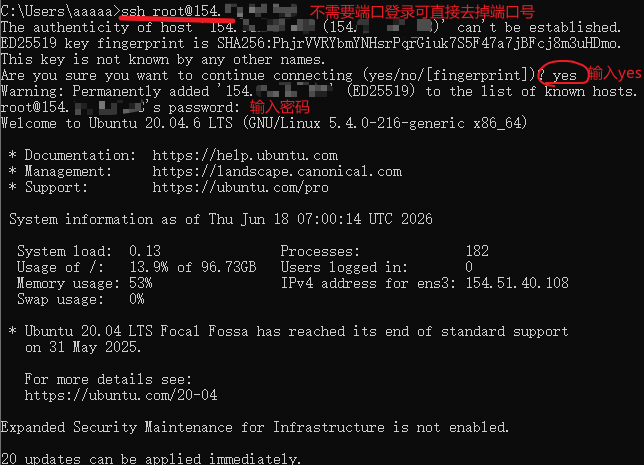
This native command-line connection method is not only extremely fast in response and consumes almost zero memory, but it also possesses high scalability. Professional developers can configure the local ~/.ssh/config file to map complex IPs and ports to simple aliases, or even configure SSH key pairs via the ssh-copy-id command, thereby achieving one-click, password-free quick login, significantly shortening the time cost of daily operations. On the VMRack platform, we leverage over 12 years of industry experience; our fully automated technical flow allows you to enjoy smooth, lag-free command-line operations within just seconds of ordering and receiving your VPS.
II. Connection via SSH Client
Although the pure command-line mode is efficient enough for single tasks, for technicians who need to manage multiple machines simultaneously, frequently transfer files between local and cloud environments, or are uncomfortable with text-only interfaces, a graphical client is undoubtedly an alternative connection method. When we perform large-scale SSH connection to Linux servers operations, some technicians prefer to install specific third-party client software locally to convert text configurations into visual windows for unified management.
Among the client tools on the market, taking MobaXterm as an example, such software usually integrates an SFTP-protocol-based file management panel on the side, in addition to providing standard terminal command lines. When a user types commands in the terminal on the right, the corresponding server directory tree is synchronized on the left, allowing users to upload or download files via mouse drag-and-drop.
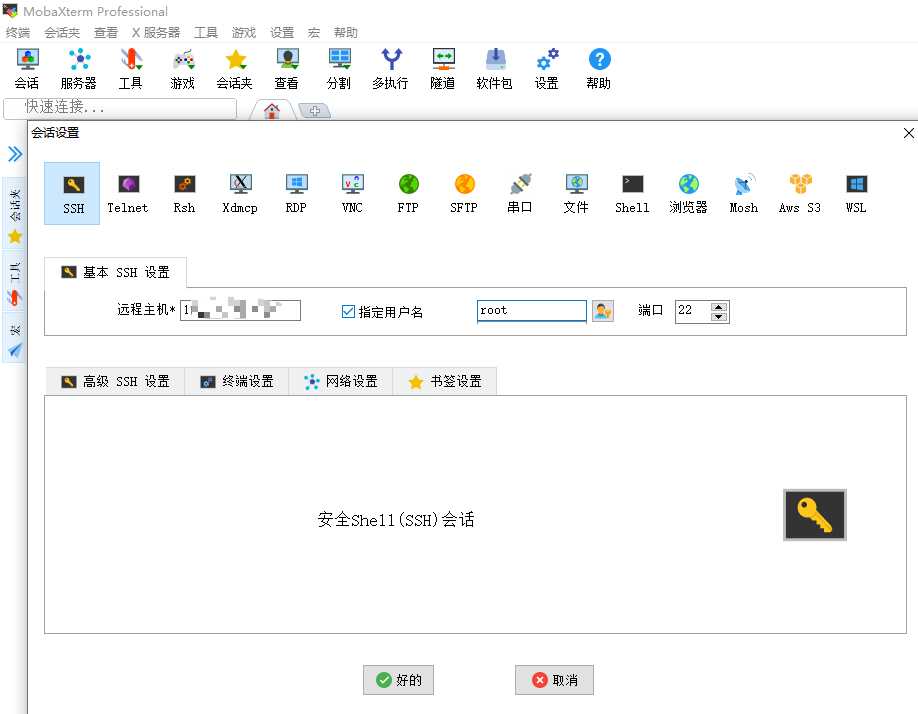
When configuring such tools locally, you usually need to manually create a new SSH session and input the VMRack server's public IP, communication port, and security credentials. Thanks to VMRack's optimized network lines and hardware support, even during the peak periods of cross-border network throughput in the evening, remote sessions established through the client maintain extremely low packet loss rates and ultra-high stability, perfectly eliminating typing stutters or connection drops caused by network jitter.
III. VMRack Official Website SSH and VNC Secure Connection
To provide global users with a more ultimate and seamless closed-loop O&M experience, the VMRack official website user control center directly integrates a set of installation-free, ready-to-use advanced web-based toolchains. When you are in a corporate intranet with strict restrictions, temporarily borrowing unauthorized equipment from others, or when regular external SSH ports cannot be connected to by the outside world due to firewall policy misconfiguration or system kernel crashes, you need not panic. Simply log in to the VMRack official website backend via any commercial browser to initiate a console connection with one click.
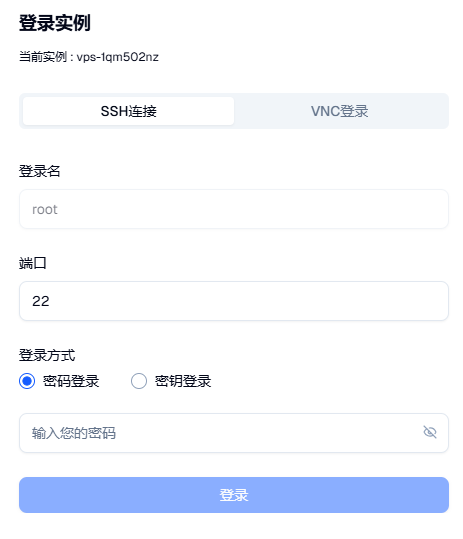
These two connection methods, deeply integrated into the VMRack official website panel, have clear divisions of labor and complementary advantages, building a dual security net for cloud server management:
Official Website Web-level SSH Login: This feature is based on advanced Web Terminal technology and a fully automated process architecture. Users can initiate standard encrypted sessions within the browser to directly perform high-level Linux command-line operations. Its response speed and input feedback rival locally installed professional software, completely shaking off the shackles of clients and making cross-platform remote management easily accessible.
Official Website Hardware-level VNC Emergency Login: VNC (Virtual Network Computing) belongs to a more underlying virtualized hardware-level console. This means that even if your cloud server network is completely interrupted due to NIC configuration errors, system boot files are damaged (Grub error), or access is completely ineffective due to external attacks, VNC can still bypass the network layer. It allows you to intuitively see the real-time screen of the server's boot process on the VMRack official website interface, enabling you to perform detailed system troubleshooting, safe mode repairs, and data recovery, just as if you were operating a physical machine in a data center with a monitor attached.
These two web-based management tools are perfectly and deeply integrated into VMRack's virtualization environment. Combined with the deep, specialized optimizations made for high-performance processors in cloud environments, their continuous and stable computing power output ensures that every keystroke and every frame of the VNC screen has extremely smooth and silky interactive feedback. You do not need to install any cumbersome third-party plugins in your local browser to enjoy absolute security and 24/7 reliable, high-level administrative access to the server.
Conclusion
Mastering and flexibly applying different technical methods for SSH remote server connection is the core basic skill to ensure the efficient and uninterrupted operation of cloud-based businesses. Whether it is rapid deployment via the terminal command lines native to major operating systems, multi-machine collaborative management using powerful third-party graphical clients, or convenient maintenance and emergency troubleshooting anytime, anywhere via the web-based advanced console provided by the VMRack official website backend, all these can help you achieve perfect control over the Linux system.
- What to do if SSH connection fails?
- What to do if the cloud server can be pinged but cannot be connected via SSH?
- GIA CN2 VPS Server Basic Environment Configuration and System Acceleration Tutorial
- VMRack premium VPS test across three networks
- How do I set up passwordless SSH login on Windows? (2 methods)

- Products
- VPS Hosting
- VPS HostingUnmetered
- Bare Metal
- GPU Rental
- CDNPublic Beta
- Custom CDN
- Object StoragePublic Beta
- TranscoderPublic Beta