What should I do if my SSH connection to the host gets stuck and doesn't move?
Getting stuck right after connecting via SSH is a relatively common issue for O&M engineers and webmasters during remote server management. It typically manifests as the terminal window freezing on the "Connecting" or "password:" stage for a long time without any further response. This situation does not necessarily mean the account or password is incorrect; more often, it indicates a bottleneck in a specific stage of the connection establishment process, such as additional queries during the authentication phase, packet loss on the network link, or high resource utilization on the server itself. Identifying the exact stage where the freezing occurs is the first step in troubleshooting and resolving the issue.
I. Common Causes: Why SSH Fails to Connect or Responds Slowly
The causes of SSH connection failures or sluggishness are relatively concentrated. Mastering these few categories can basically cover over 90% of scenarios. During troubleshooting, you can check them one by one using the following approach.
DNS Reverse Lookup Timeout: By default, the SSH server performs a reverse DNS query on the client's IP. If the DNS server responds slowly or fails to resolve, the connection will get stuck in the authentication phase with no progress for a long time. This is one of the most common reasons for freezing.
GSSAPI Authentication Waiting: Some systems enable GSSAPI authentication by default. The client will attempt Kerberos authentication negotiation. If the network environment does not support it, this process will waste tens of seconds or even longer in waiting time.
Network Link Quality Issues: If the international link between the local machine and the server experiences packet loss, jitter, or speed limiting, the TCP handshake and subsequent data interactions will become exceptionally slow. Similar issues are particularly prone to occurring during peak evening hours.
Excessive Server Resource Utilization: If the CPU or memory is fully utilized, or if there is an abnormal disk I/O, the
sshdprocess may fail to respond to new connection requests in a timely manner. In this case, you need to log into the host's console or VNC for further confirmation.
II. Specific Solutions: Step-by-Step Troubleshooting from Software Configuration to the Network Layer
Once the cause is identified, the next step is to apply the right remedy. You can try the following operations in order from simple to complex.
First, troubleshoot which step the connection is stuck on by checking the detailed logs, and then modify the SSH configuration file accordingly based on the log results. This is the most direct and effective troubleshooting method:
Bash
# 1. Connect with the -v parameter on the client to view detailed logs and locate the stage where the freeze occurs
ssh -v user@ip

# 2. Log in to the server and edit the SSH configuration file
vim /etc/ssh/sshd_config

# 3. If the log shows a freeze during the reverse DNS lookup phase, set UseDNS to no
UseDNS no

# 4. If GSSAPI authentication is suspected of slowing down the speed, set this option to no as well
GSSAPIAuthentication no

# 5. After completing the modifications, restart the sshd service to apply the configuration
systemctl restart sshd
These two modifications usually yield immediate results in resolving connection sluggishness.
Secondly, if the log indicates a freeze during the TCP handshake or data transmission phase, the problem is highly likely within the network link. You can step-by-step test the packet loss and latency from the local machine to the server using the following commands:
Bash
# 1. Test the connectivity and latency from the local machine to the server
ping ip

# 2. Trace the routing nodes that data packets pass through to locate abnormal hops
traceroute ip

# 3. Continuously monitor link quality to observe whether the packet loss rate is stable
mtr ip
Determine whether there is an abnormality at a specific hop node. In this scenario, even if both local and server configurations are completely fine, poor link quality will still cause SSH connection failures or frequent disconnections. This is exactly why choosing a stable line is crucial for a smooth remote management experience.
III. Reducing Freezes from the Source: Choosing Premium Data Centers and Network Lines
While troubleshooting and fixing are important, if the data center where the server is located has poor network quality, similar connection freezing issues are very likely to recur. In such cases, choosing a provider that possesses full autonomy and optimization capabilities over its network architecture will save much more hassle than manual troubleshooting every time.
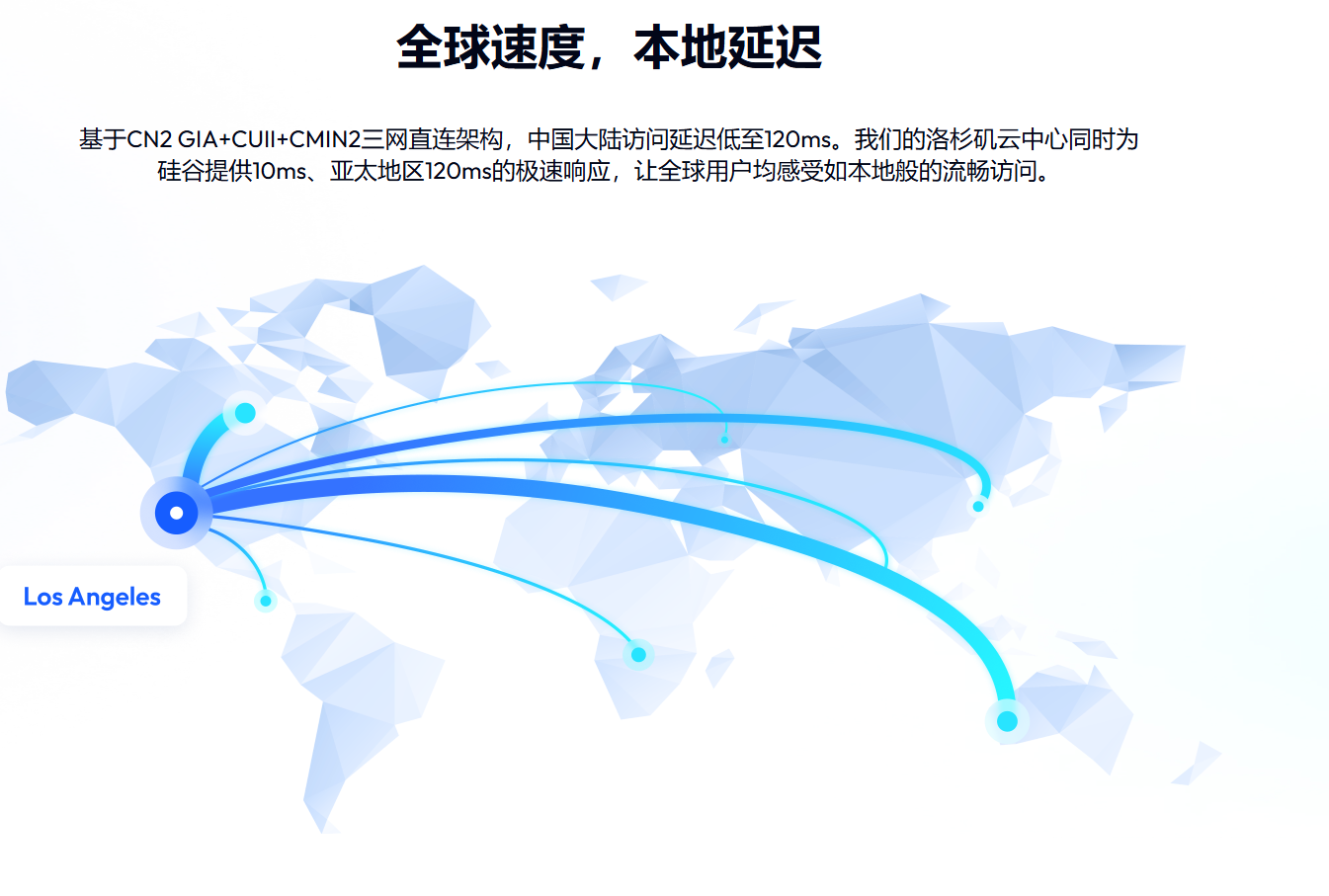
VMRack, as a self-developed cloud infrastructure service provider under EasyLink, relies on its self-built data center in Los Angeles, maintaining complete autonomous control over network links. It can provide a variety of routing solutions tailored to different user needs. Taking VMRack's premium routing as an example, its premium VPS for three major Chinese carriers features a top-tier combination of CN2 GIA+AS9929+CMIN2. It delivers outstanding stability and low-latency performance during evening peak hours, making it particularly suitable for latency-sensitive scenarios such as remote desktops and SSH remote management, effectively reducing the probability of connection freezes caused by link congestion. Furthermore, the VMRack data center is equipped with over 200Gbps of free defense capabilities, along with infrastructure guarantees such as UPS uninterrupted power supplies, smart ventilation, and very early smoke detection alarms. The 7x24-hour access control monitoring and security guard presence also ensure a more reliable server operating environment, reducing the possibility of unexpected interruptions from both hardware and network dimensions.
Summary
In general, the issue of SSH freezing right after connecting to a host can be resolved in most cases by disabling DNS reverse lookup, disabling GSSAPI authentication, or troubleshooting network link quality. If you want to fundamentally reduce the frequency of such failures, choosing a service provider with stable network infrastructure and premium routing lines is equally a long-term solution worth considering.


- Products
- VPS Hosting
- VPS HostingUnmetered
- Bare Metal
- GPU Rental
- CDNPublic Beta
- Custom CDN
- Object StoragePublic Beta
- TranscoderPublic Beta