What to do if I can't connect to my VPS via SSH?
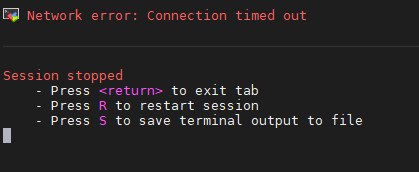
When you receive error messages like Connection refused or Connection timed out, it means you are experiencing an SSH connectivity issue with your VPS. While this situation may seem complex, the vast majority of cases can be diagnosed using a few fixed troubleshooting steps. This article will guide you through three common stages—local network, server-side configuration, and key authentication—providing specific troubleshooting approaches and solutions for each. This will help you restore normal server access in the shortest time possible, preventing downtime from delaying your business deployments or daily maintenance tasks.
Step 1: First, Troubleshoot Local Network and Connection Parameters
Before suspecting a server failure, verify whether your local connectivity environment is functioning properly. Many instances of "SSH connection failures" are not caused by the server itself, but rather by local network fluctuations, mistyped IP addresses, or client configuration errors. Troubleshooting these issues is low-cost and quick, so it is recommended as your top priority.
You can check in the following order:
Use
ping server_IPto test network connectivity. If there is no response for an extended period, your local network may be restricting ICMP traffic, or packet loss may exist along the link. You can switch totelnet server_IP 22ornc -zv server_IP 22to specifically test the connectivity of port 22 and observe if a normal TCP handshake can be established;Confirm whether the port number is correct. For security reasons, some VPS providers change the default port 22 to a custom port. The connection command requires
-p port_number. If an incorrect port is entered, the client will usually hang at the connecting stage for a long time without throwing an explicit error;Check if your local network environment has changed (e.g., switching from a corporate network to a home network, or from Wi-Fi to a mobile hotspot). Certain ISP or firewall policies block specific outbound ports, causing previously working connections to suddenly drop;
Try switching test nodes or routes—such as reconnecting via a mobile hotspot or another network environment—to eliminate interference from single-link fluctuations. You can also use online port checker tools to verify from an external perspective whether the server port is open to the public internet.
If no anomalies are found during local testing, the problem is most likely on the server side, requiring you to proceed to the next step.
Step 2: Check Server-Side Services and Firewall Settings
If the local network is verified to be working correctly, the issue usually lies on the server side. This step typically requires logging into the server via the VNC or Web Console provided by your VPS vendor, bypassing SSH to perform troubleshooting. This is one of the most common and direct methods for diagnosing such problems.
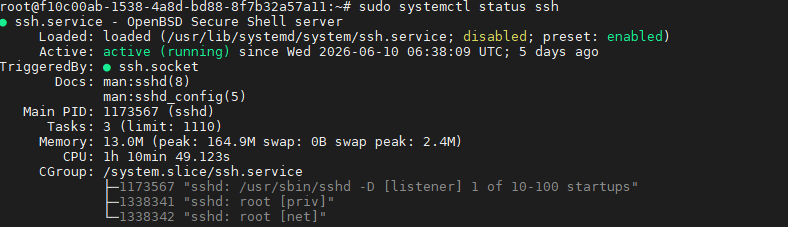
First, confirm whether the SSH service itself is running normally. Execute systemctl status sshd (or ssh, depending on the OS) in the console to check service status. If the service is stopped, start it using systemctl start sshd. It is also recommended to run systemctl enable sshd to prevent the service from failing to auto-start after the next reboot. Next, check firewall rules. Whether using built-in firewalls like iptables, firewalld, or ufw, misconfigurations may accidentally block port 22 or your custom port. Use ufw status or iptables -L to check the current allowed port list and confirm the relevant port is permitted. If you find rules were modified by mistake, promptly add an allow rule and save the configuration. Additionally, security software like Fail2ban will automatically ban source IPs if it detects multiple failed login attempts, which is another common cause of connection anomalies. You can run fail2ban-client status sshd to check if an IP was mistakenly banned, and use fail2ban-client set sshd unbanip your_IP to manually unban it.
For VPS providers with self-built data centers, network-level stability is equally critical. Relying on VMRack's proprietary network architecture, where data center and network resources are entirely self-built and controlled, allows for faster location and response when network-level anomalies occur. This reduces connection dropouts caused by upstream network issues and provides users with a more stable link guarantee during peak hours.
Step 3: Troubleshoot Key Authentication and User Permission Issues
If the service is running and ports are allowed, but you still see Permission denied, the issue mostly stems from the identity authentication phase during remote SSH connections. This is the most common failure point during initial SSH key configuration or after recent security hardening.
Common causes include: improper SSH key file permission settings (private key file permissions should be set to 600; if permissions are too permissive, the client will outright refuse to use the key), incorrect public key content in the authorized_keys file, key corruption caused by extra line breaks or distorted formatting, or accidental modifications to PermitRootLogin or PasswordAuthentication in /etc/ssh/sshd_config, which disables root user or password logins. You can log in via the console to inspect these configurations sequentially. If necessary, regenerate a key pair and rewrite the public key to the authorized_keys file. After making modifications, remember to run systemctl restart sshd to apply the changes. Additionally, if security hardening was recently performed on the system, confirm whether the network interface or address listened to by SSH was modified (e.g., restricting ListenAddress to an internal IP or adjusting the default listening port), which will also prevent external connections from succeeding.
Summary
The causes of SSH connection failures on a VPS typically concentrate around local network conditions, server-side service status, firewall rules, and key authentication configurations. By troubleshooting systematically from the outside in, most issues can be identified and resolved within a few minutes. If you are still unable to restore the connection after troubleshooting, it is recommended to contact your VPS provider's technical support to assist in further diagnosing underlying network conditions. If necessary, you can also restart the server or reset the SSH configuration via the console to quickly regain access.


- Products
- VPS Hosting
- VPS HostingUnmetered
- Bare Metal
- GPU Rental
- CDNPublic Beta
- Custom CDN
- Object StoragePublic Beta
- TranscoderPublic Beta