SSH Cannot Connect to Server? (3 Solutions)
Why Can't SSH Connect to the Server?
In daily system administration, SSH connection failures are a relatively common issue. Whether you are deploying applications remotely or troubleshooting system failures, you need to connect to the server via SSH. So, what should you do when SSH cannot connect to the server? There are many reasons why SSH cannot connect to a server, and the three most common ones are as follows:
Network or firewall issues: An incorrectly configured server IP address, a security group that does not allow SSH traffic, or a local network that cannot properly access the server may cause SSH connection failures.
SSH service is not running: If the SSH service on the server is not running properly, or the SSH listening port does not match the port used by the client to connect, the SSH connection may fail.
Incorrect username or SSH key: If the login username is incorrect or the private key used by the client does not match the public key configured on the server, authentication will fail.
What Should You Do When SSH Cannot Connect to the Server?
SSH connection failures are usually caused by network connectivity issues, blocked ports, SSH service errors, or authentication failures. Next, this article will introduce three specific solutions to help you quickly restore remote access to your server.
Method 1: Check the Network and SSH Port
When SSH cannot connect to a server, the first step is to check whether the network is working properly and whether the server's SSH port is accessible. By following the steps below, you can determine whether the problem lies with the server's IP address, network connection, firewall, or port configuration.
1.Log in to your cloud server management console, locate the target server, and confirm its public IP address. Then, open Command Prompt (CMD) on your local computer and use the ping command to test network connectivity to the server.
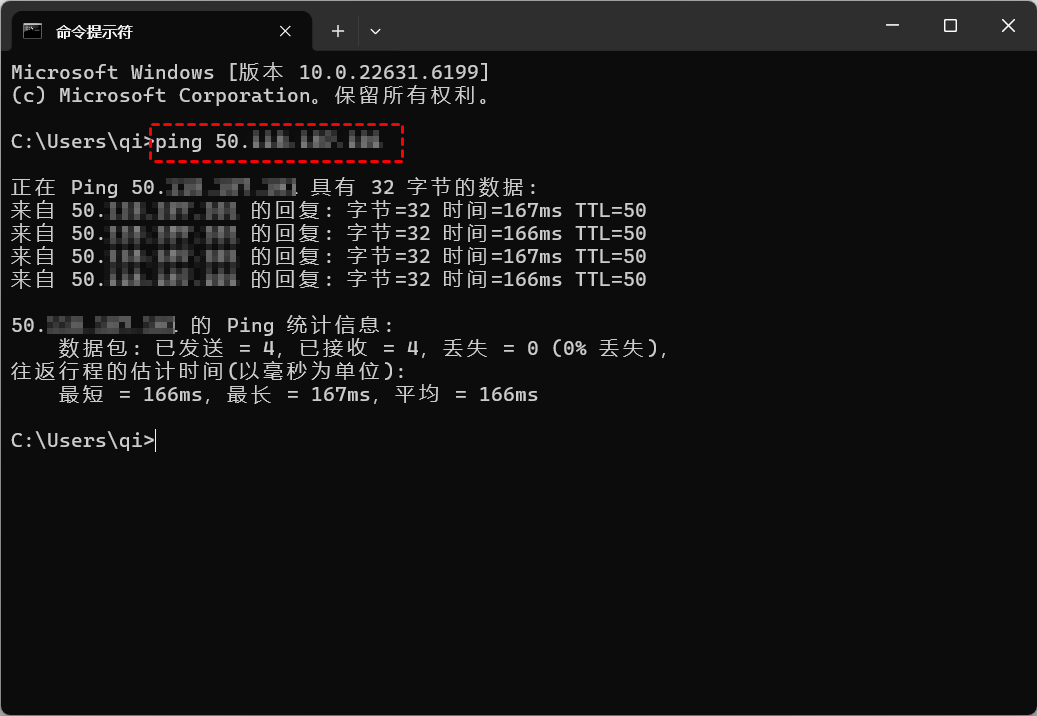
Note: If you continuously receive responses, the network is generally reachable. If the requests time out, you can further test the SSH port to determine whether the TCP connection is working properly.
2.Check whether the SSH port is accessible. Run the following command in PowerShell and check whether TcpTestSucceeded in the results is True.
Test-NetConnection -ComputerName Server_IP -Port 22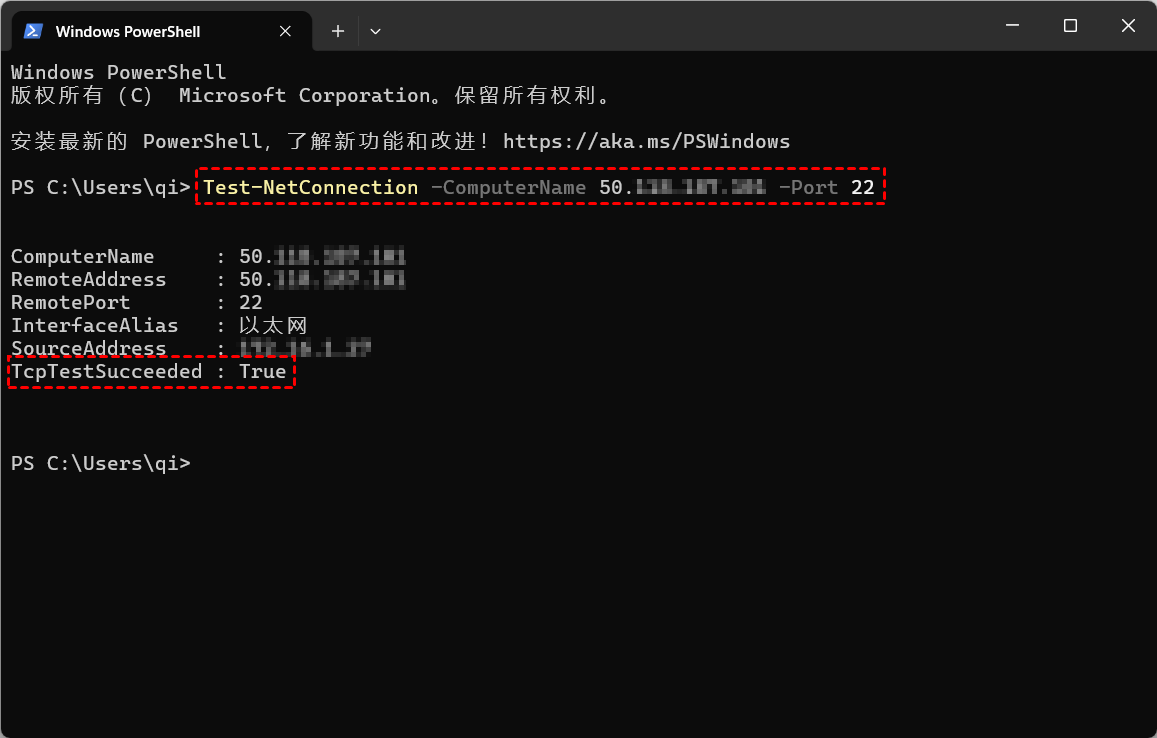
If the result is True, the SSH port can establish a TCP connection. You only need to check the SSH service, username, or key next. If the result is False, the SSH port connection has failed, and you need to further check the firewall, security group, SSH service, or actual port configuration.
Method 2: Check the Server's SSH Service
If checking the network and SSH port reveals no obvious problems, you can use the web terminal or VNC provided by your cloud service provider to check whether the SSH service on the server is running properly.
1.Log in to your cloud server through the VNC console provided by your cloud service provider, then run the command sudo systemctl status ssh to check the status of the SSH service.
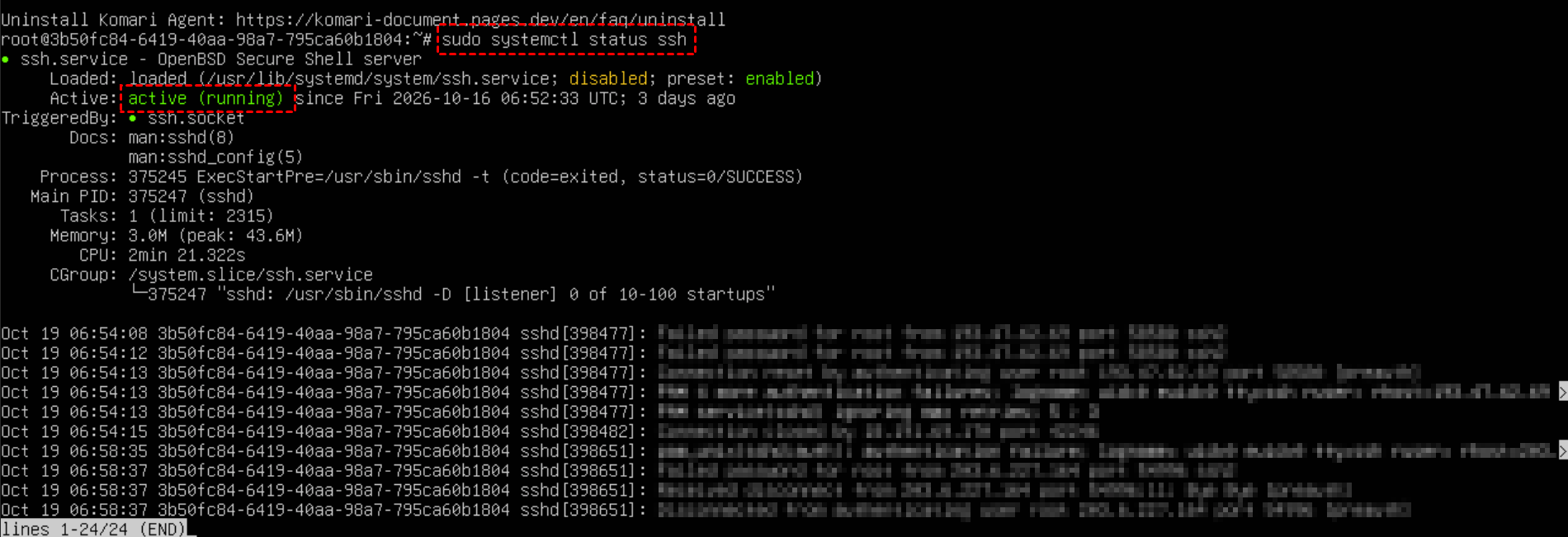
Determine the service status based on the command output:
active (running): The SSH service is running.
inactive (dead): The SSH service is not currently running.
failed: The SSH service failed to start, and you need to check the error logs further.
2.If the SSH service is not running, execute the command sudo systemctl start ssh to start it.
Method 3: Check the Login Credentials and Password
If the network connection is working properly and the SSH service is running, but you still cannot log in to the server, you need to check whether the login username, password, and SSH key configuration are correct.
When logging in via SSH, you must use a valid account that exists on the server. The default usernames permitted by different servers and cloud platforms may vary. For example:
root: The superuser account on Linux systems.
admin: An account used in some server images or environments.
ubuntu: The default account on some Ubuntu cloud servers.
If SSH cannot connect to the server and displays Permission denied, authentication has failed. The username or password may be incorrect, password authentication may be disabled on the server, or the account may not have the necessary login permissions. You need to check the server's authentication configuration further.
Conclusion
SSH connection failures are usually related to network or firewall configuration issues, an SSH service that is not running properly, or failed login credentials or key authentication. When encountering these issues, you can follow the troubleshooting methods provided in this article to quickly identify the cause and restore remote access to your server.
If you are looking for a stable and reliable server in the United States, you can also explore VMRack cloud servers. VMRack operates its own data center in Los Angeles, USA, provides US native IP addresses, and supports various network routes, including CN2 GIA, AS9929, and CMIN2, to meet different users' network connectivity and server deployment needs.


- Products
- VPS Hosting
- VPS HostingUnmetered
- Bare Metal
- GPU Rental
- CDNPublic Beta
- Custom CDN
- Object StoragePublic Beta
- TranscoderPublic Beta