What Are Some Easy Ways to Connect to a Server via SSH?
What Is the SSH Protocol?
SSH (Secure Shell) is a network security protocol based on encryption technology. It is primarily used for securely logging in to and managing remote computers, and is also one of the common ways to access and manage remote Linux servers. By connecting to a server via SSH, users can establish an encrypted connection between their local computer and the remote server to execute remote commands, manage the system, and transfer files.
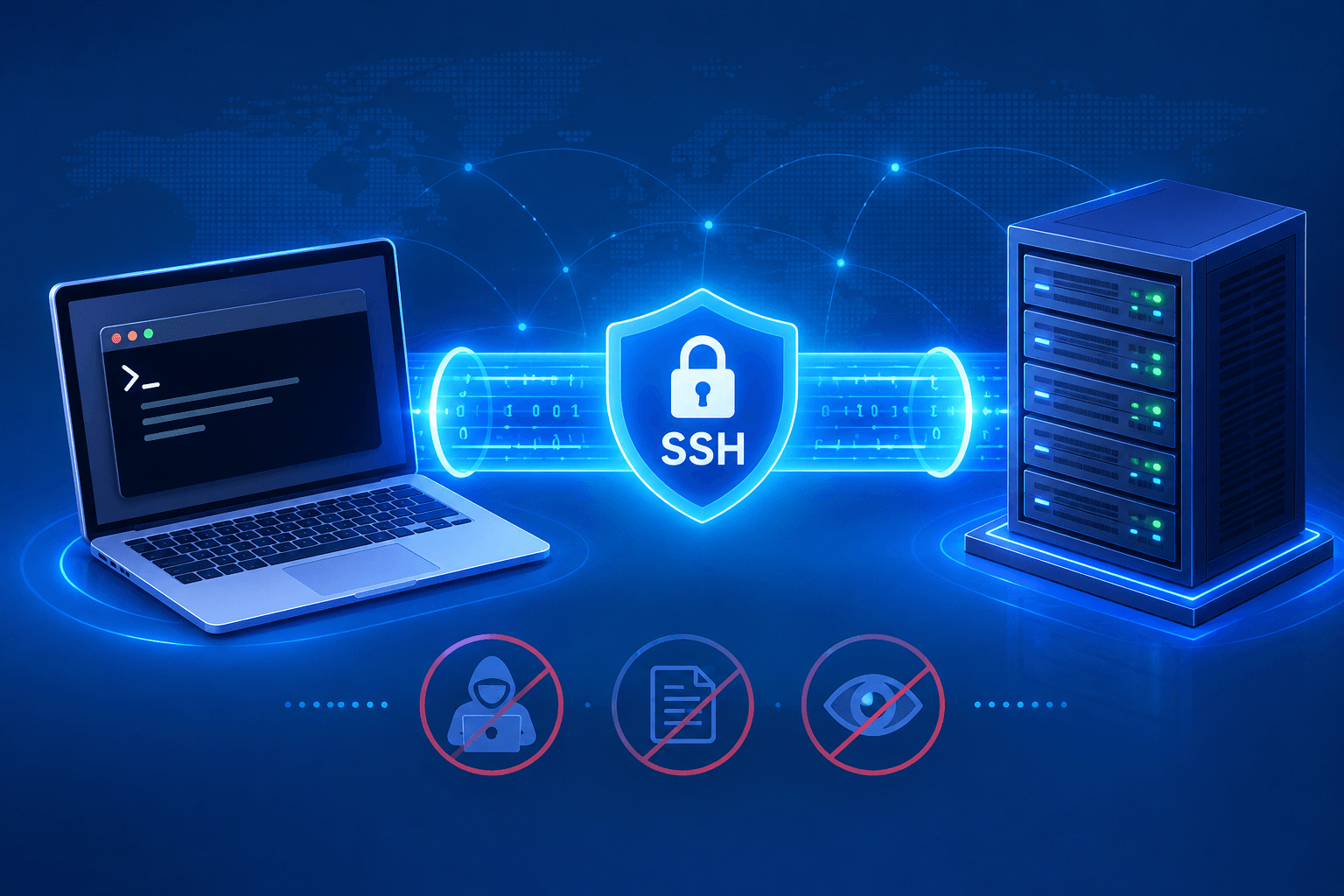
Compared with traditional plaintext transmission methods such as Telnet and FTP, SSH protects communication data through encryption and authentication mechanisms, reducing the risk of sensitive information being stolen or tampered with during transmission. As a result, it provides more reliable remote access services in insecure network environments.
How to Connect to a Remote Server via SSH
There are two common methods for connecting to a remote server via SSH: using SSH commands or SSH tools. Next, this article will walk you through the specific steps for connecting to a server via SSH.
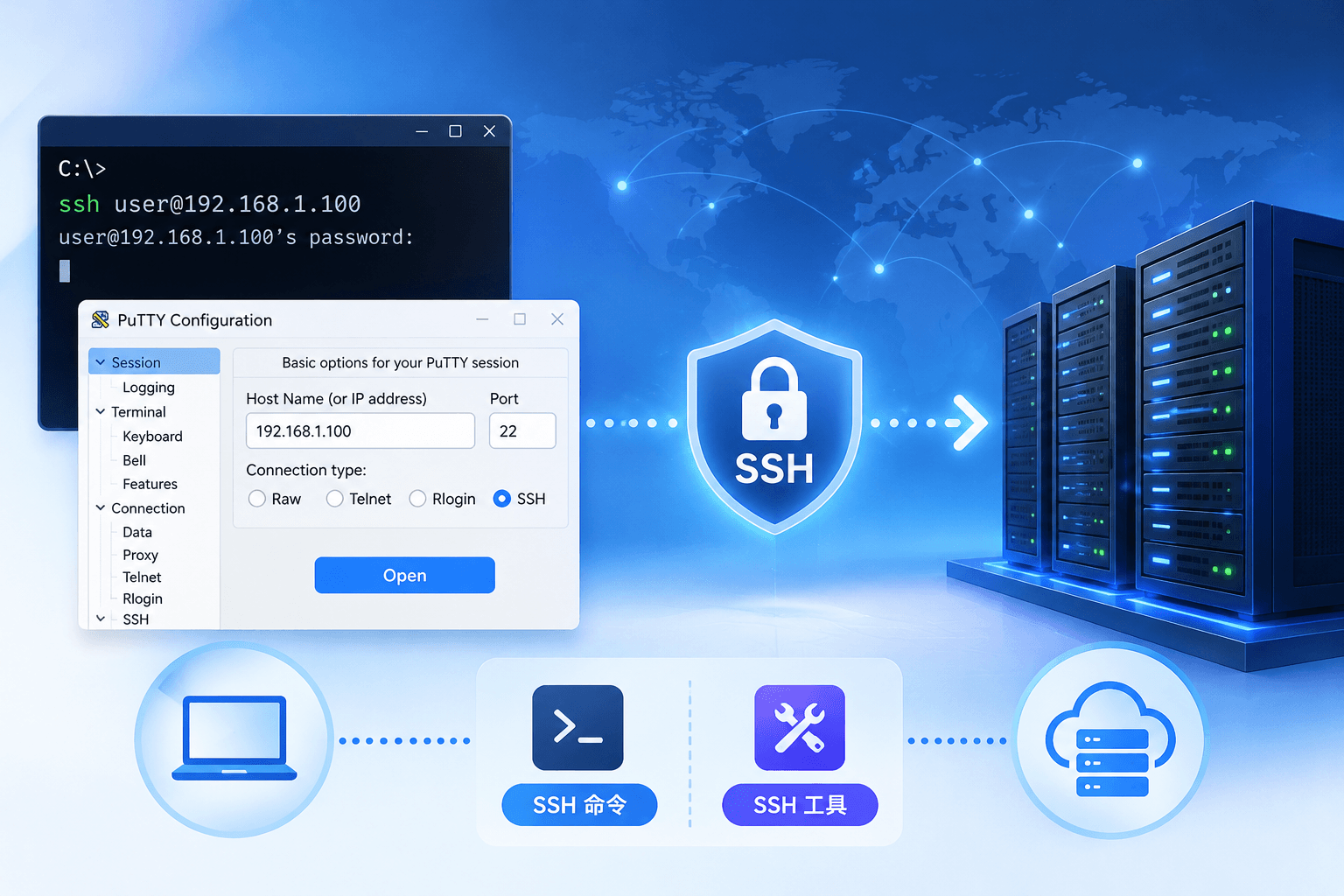
Method 1: SSH Commands
The basic syntax for an SSH connection command is "ssh username@server IP address". You can execute this command in the Command Prompt on a Windows computer or in a Linux system to connect to a remote server. Below, we will use Windows as an example to explain the specific steps.
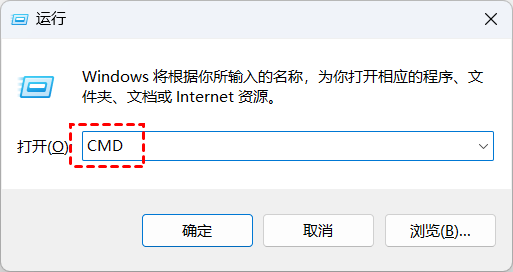
1.How do you connect to a server remotely? First, open the Run dialog box on your Windows computer and enter "CMD" to open Command Prompt.
2.Next, enter the SSH connection command in the Command Prompt window and press Enter.
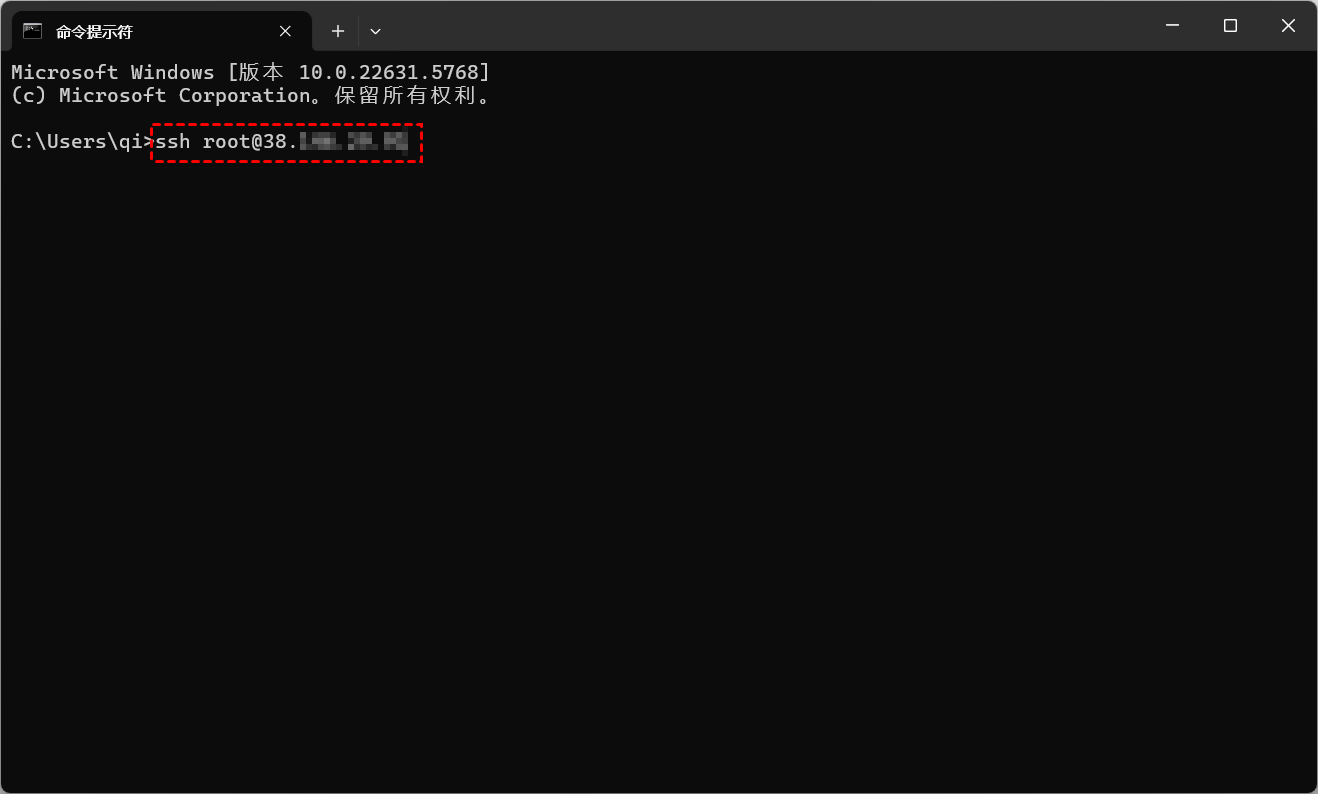
3.Then, enter the server password when prompted to connect to the remote server.
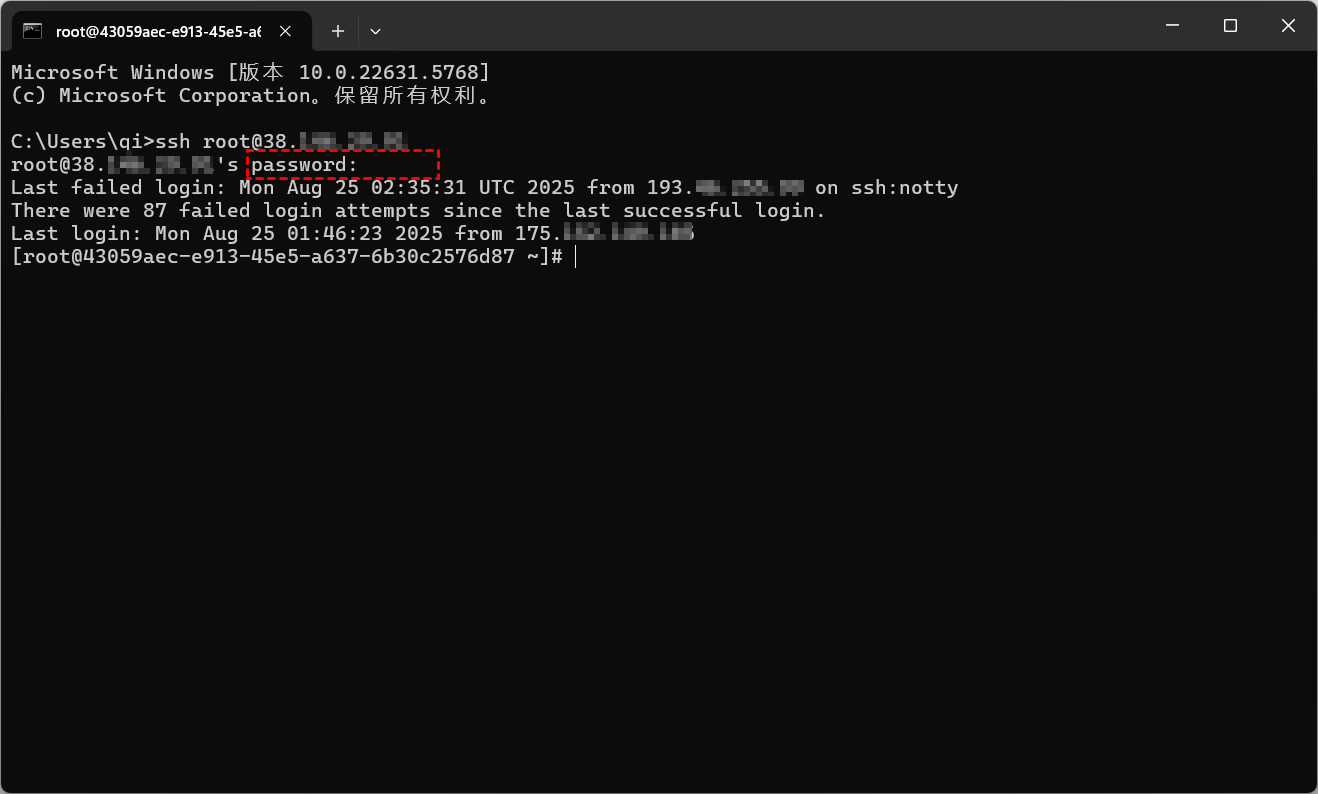
Note: Nothing will be displayed when you enter the password. Simply press Enter after typing it. If you do not want to enter a password, you can also use SSH passwordless login to connect to the server.
Method 2: SSH Remote Access Tools
In addition to the method described above, you can also use SSH tools to connect to a server. For example, PuTTY is a free, open-source, lightweight SSH tool that allows you to connect to remote servers easily.
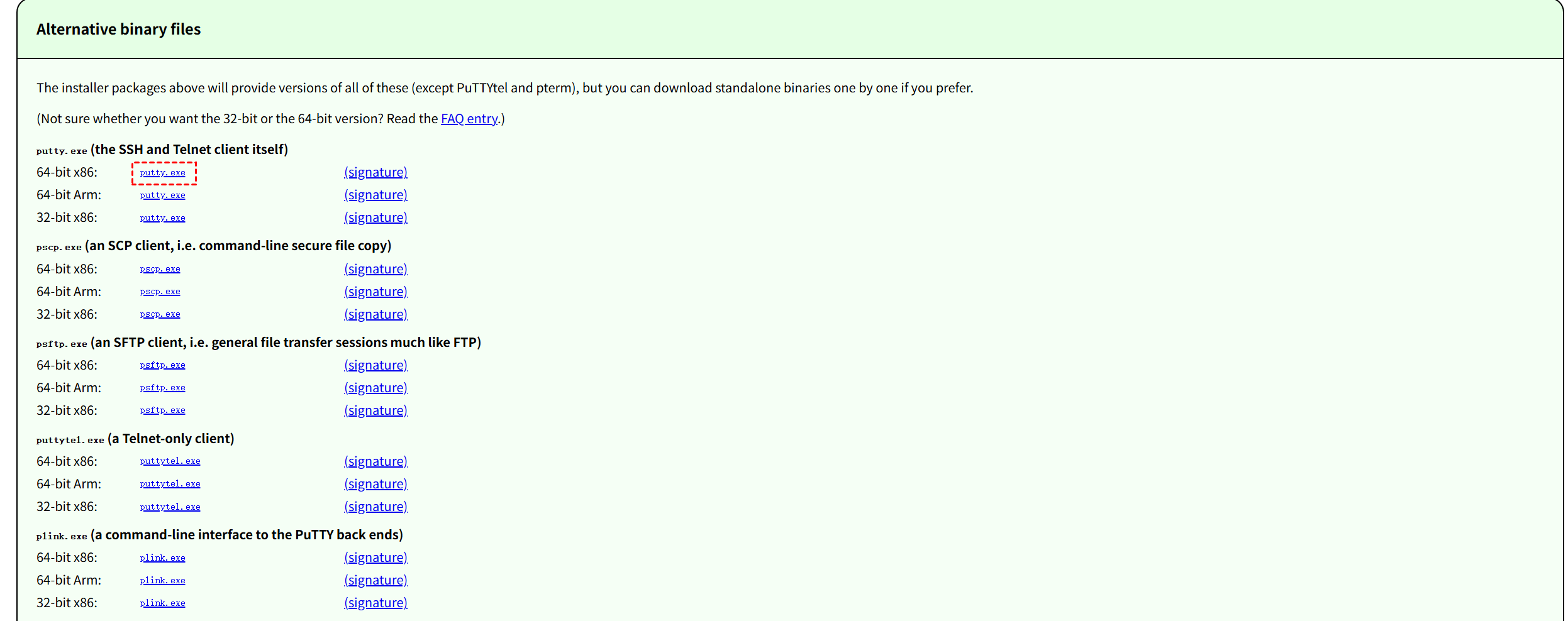
1.Visit the official PuTTY website and download the portable version, which can be used immediately after opening.
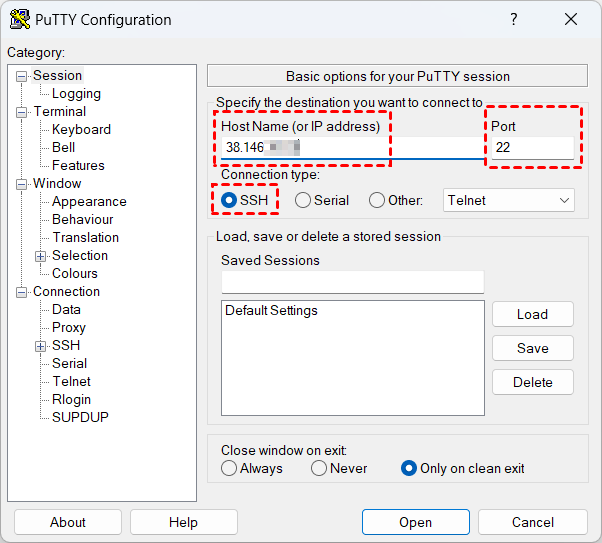
2.After opening PuTTY, enter the server's IP address. Enter "22" in the Port field, select "SSH" as the connection protocol, and then click "Open" to connect.
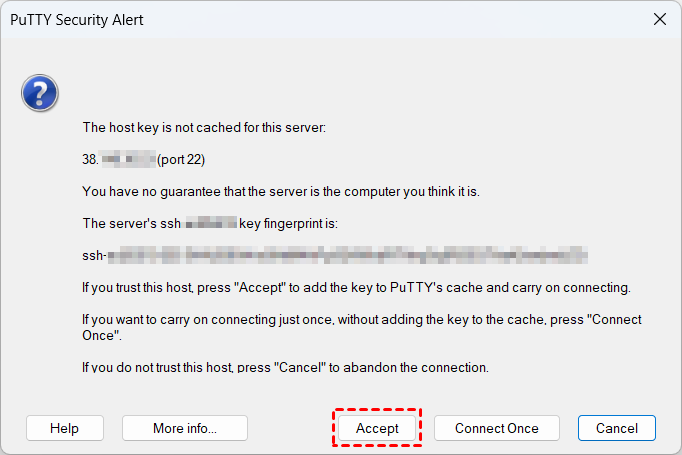
3.When connecting to the server for the first time, the software will prompt you that a host key fingerprint will be generated. Click "Accept" to proceed.
4.Then, enter the server's username and password and press Enter to log in to the server.
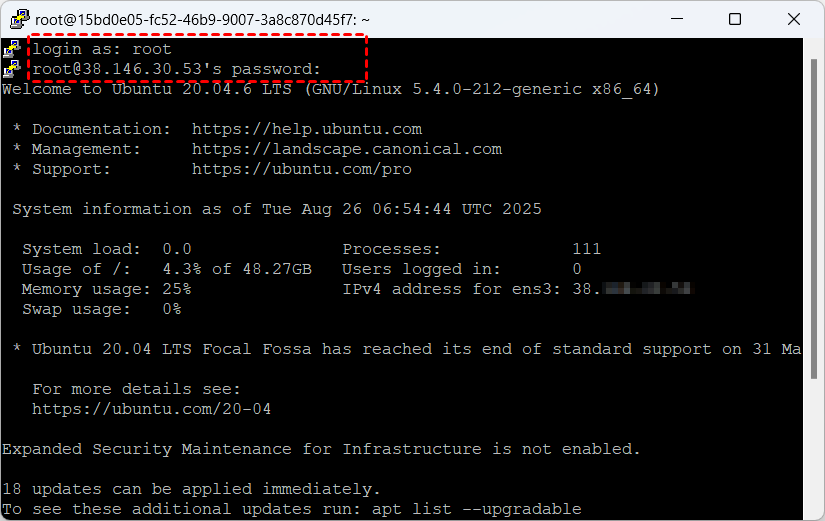
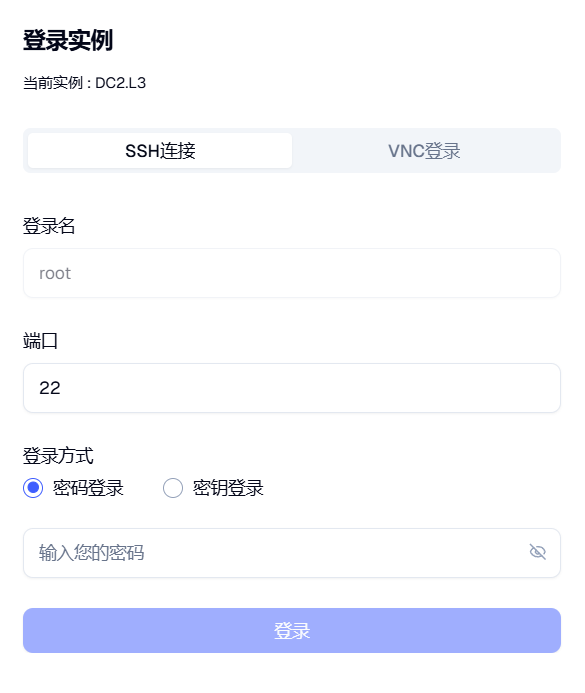
Generally, cloud service providers offer web-based SSH connections. For example, VMRack provides an SSH connection feature, allowing you to connect to a remote server directly through the control panel without downloading any third-party tools.
VMRack is a global cloud infrastructure service provider. Its premium three-network servers use high-quality network routes such as CN2 GIA, AS9929, and CMIN2, providing users with a more stable and smoother experience when accessing overseas servers. In addition, VMRack supports multiple IP addresses and private network connectivity, making it suitable for overseas website hosting, cross-border businesses, and enterprise applications.
Conclusion
In this article, we introduced two common and simple methods for connecting to a server via SSH: using SSH connection commands and using SSH remote access tools. Both methods can help you connect to remote servers quickly. You can choose the method that best suits your needs.


- Products
- VPS Hosting
- VPS HostingUnmetered
- Bare Metal
- GPU Rental
- CDNPublic Beta
- Custom CDN
- Object StoragePublic Beta
- TranscoderPublic Beta