How to Make an SSH Remote Connection to a Linux Server?
To manage a Linux server, you first need to master SSH remote connection. SSH is an encrypted network protocol that lets you log in to and operate a remote server securely from your local computer, with no need to visit the data center. This guide walks through the full process in three steps: preparation, login and tools.
Preparation Before Connecting
Before you set up an SSH remote server connection, confirm four pieces of information: the server’s public IP address, the SSH port (22 by default), the login username (usually root), and the password or private key file. These details are normally provided by email or in the control panel once the server is activated.
Also make sure the SSH service is running on the server and that the firewall or security group allows the port. On Ubuntu and Debian, run systemctl status ssh to check the status; on CentOS and Rocky Linux, use systemctl status sshd.
Command-Line Login and Key Setup
Windows 10 and later, macOS and Linux all include an OpenSSH client, so you can use it directly from PowerShell or a terminal. The basic format is:
ssh root@server-IP
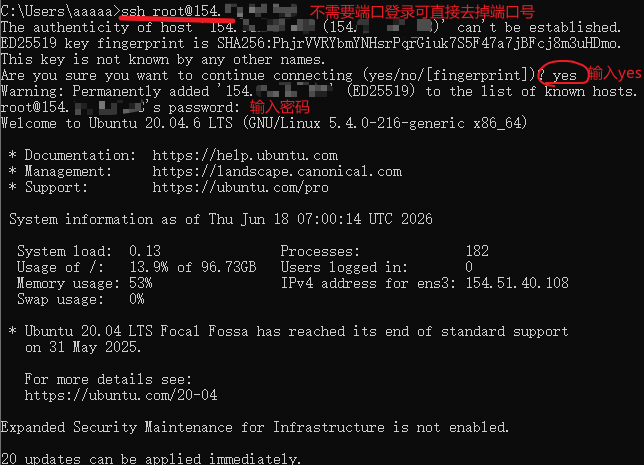
If the port is not 22, specify it with -p, for example ssh -p 2222 root@server-IP. On first connection you will be asked to confirm the host fingerprint; type yes, then enter your password to log in. The screen shows no characters while you type the password, which is normal.
For better security, switch to key-based passwordless login. If you use a VMRack cloud server, you can create a key directly in the control panel for passwordless login, or generate a key with the OpenSSH feature built into Windows and use it to log in.
After key login works, edit /etc/ssh/sshd_config and set PasswordAuthentication to no to disable password login, then restart the SSH service. Keep one logged-in session open so a configuration mistake does not lock you out.
Graphical Clients and Troubleshooting
If you are not comfortable with the command line, choose one of the graphical SSH client tools, such as PuTTY, Xshell, MobaXterm or Termius. They all support saved sessions, multi-server management and private key import, which suits anyone who maintains several machines.
Simply create a new session, enter the host IP, port and username, then choose password or key authentication. MobaXterm also has a built-in SFTP panel for uploading and downloading files. If the connection fails, check the following cases one by one:
• Connection timed out: check that the IP is correct, that the security group or firewall allows the SSH port, and that your local network is working.
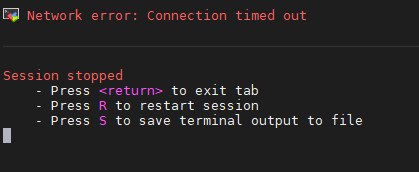
• Connection refused: usually the SSH service is not running, or the port number is wrong.
• Permission denied: the username, password or private key is incorrect, or the server forbids root password login.
• UNPROTECTED PRIVATE KEY FILE: the key file permissions are too open; run chmod 600 key-file to fix it.
If you see high latency or frequent disconnections when reaching overseas servers, choose a server with better routing. VMRack’s Premium Triple-Network VPS (L3) runs on CN2 GIA, AS9929 and CMIN2 routes, which keeps connections more stable during evening peak hours and suits long-term use.
Summary
The key to SSH remote connection is to prepare the IP, port and authentication details, log in through the command line or a graphical client, and use key authentication for better security. When problems occur, check the network, port, service status and authentication method in turn, and most issues can be solved quickly.


- Products
- VPS Hosting
- VPS HostingUnmetered
- Bare Metal
- GPU Rental
- CDNPublic Beta
- Custom CDN
- Object StoragePublic Beta
- TranscoderPublic Beta