Some recommended useful SSH tools!
From Windows to Mac and Linux, there are plenty of SSH clients available on the market, but only a few are truly user-friendly and stable. The following list of recommended SSH tools covers users across different platforms and with various usage habits, helping you quickly find the one that suits you best.
Common SSH Tools
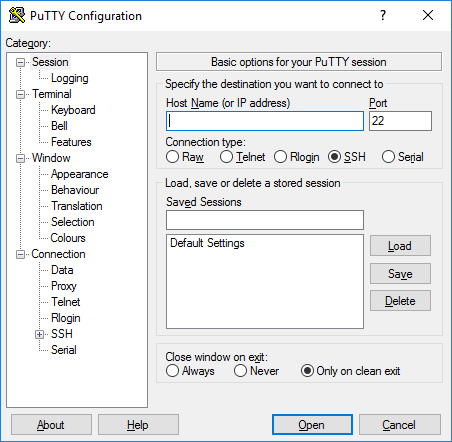
PuTTY
PuTTY is one of the most classic SSH tools on the Windows platform. Lightweight and fast to launch, it requires almost no additional configuration to connect directly to a server, making it ideal for temporary O&M (operations and maintenance) tasks. However, its interface is relatively plain and its session management features are limited; managing multiple servers simultaneously can be somewhat cumbersome.
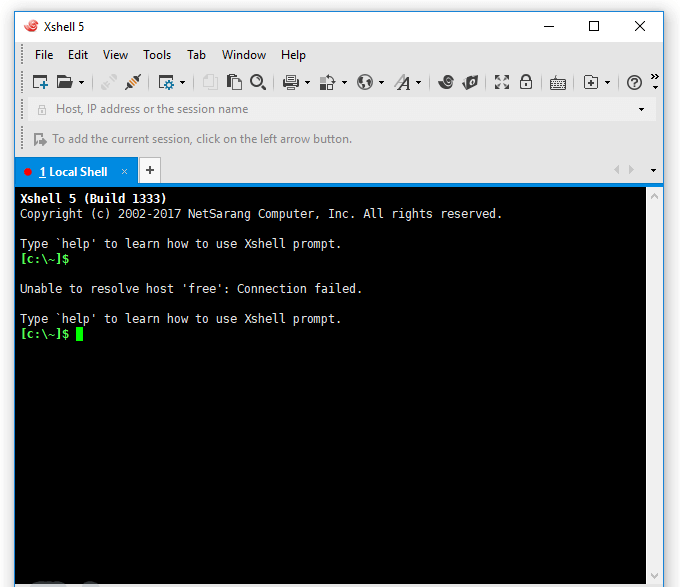
Xshell
Xshell offers more comprehensive functionality, supporting multi-tab management, session grouping, and script automation. Its interface aligns better with modern user habits, making it suitable for users who perform server O&M frequently and long-term—especially in scenarios requiring the management of multiple VPS instances, where grouping and batch operations significantly boost efficiency.
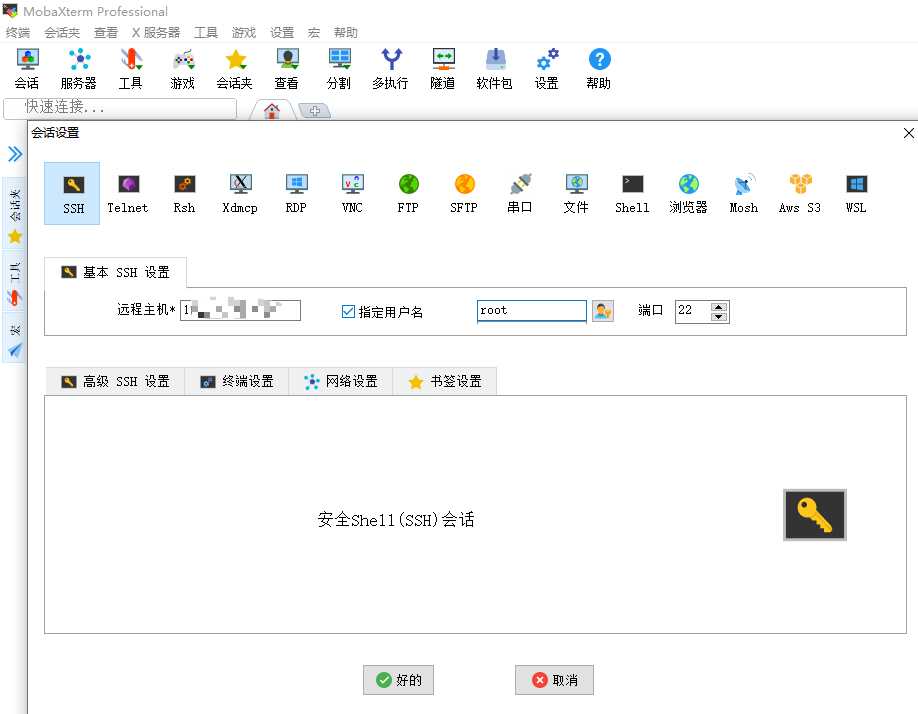
MobaXterm
MobaXterm integrates multiple features into a single suite, including SSH, SFTP, and X11 forwarding. It even features a built-in lightweight Unix environment, making it extremely friendly for developers who need to simulate Linux command-line operations under Windows, saving the trouble of installing Cygwin or WSL separately.
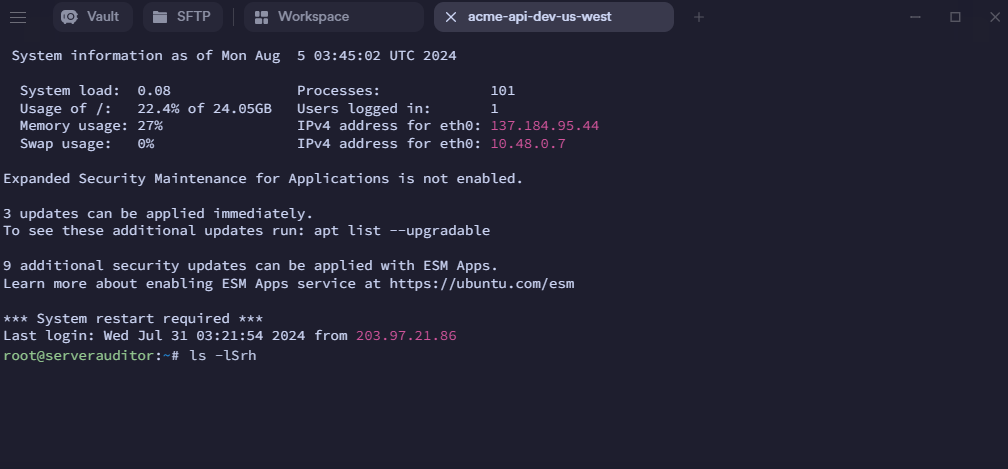
Termius
Termius is a cross-platform SSH client providing a unified experience across desktop and mobile devices. It supports cloud synchronization of session configurations, making it suitable for users who need to switch between computers and smartphones to manage servers remotely anytime, anywhere.
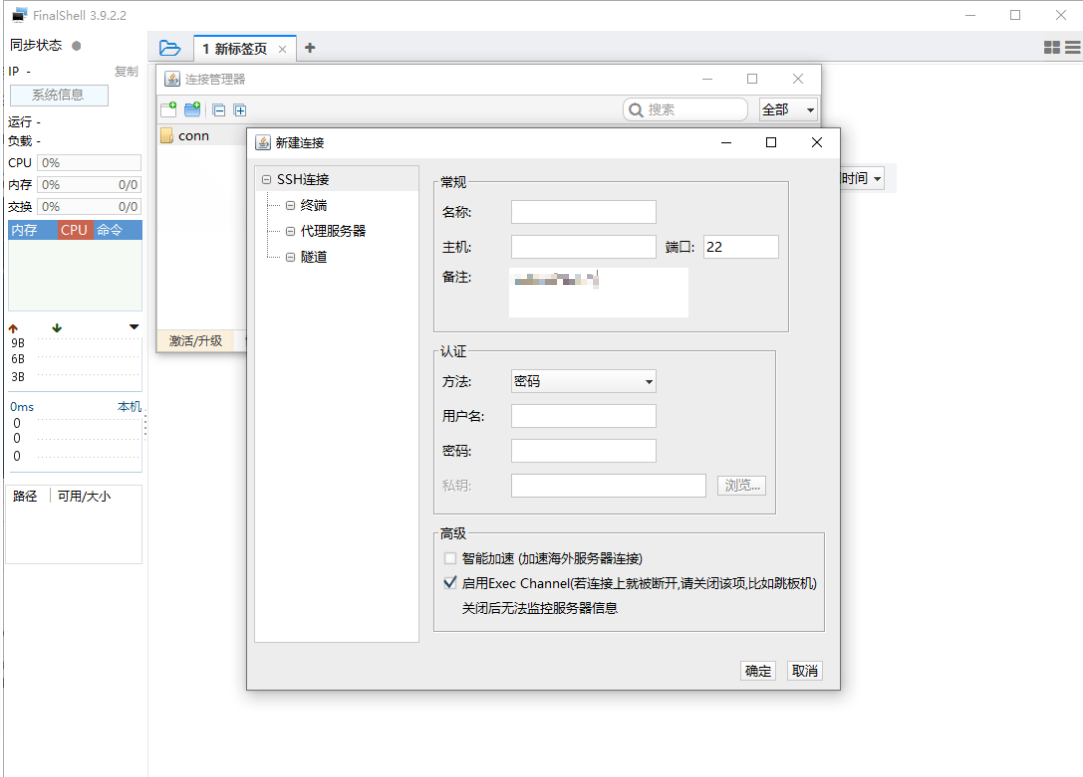
FinalShell
FinalShell leans more toward graphical management. Beyond basic SSH connection capabilities, it incorporates a built-in server resource monitoring panel that provides an intuitive view of CPU, memory, network, and other operating statuses, making it well-suited for users who prefer visual management.
Remote Connection to Servers via Windows CMD Command Line
In fact, starting from Windows 10, the system comes with a built-in OpenSSH client. Without installing any third-party tools, you can complete SSH remote connections directly from the CMD command line. The usage is simple: open CMD, type ssh username@server_IP -p port_number (the default port is 22), such as ssh root@1.2.3.4, and enter the password as prompted to log in. If the server is configured with key authentication, you need to specify the local private key file path using the -i parameter, e.g., ssh -i C:\Users\username\.ssh\id_rsa root@server_IP, allowing you to log in securely without entering a password manually.
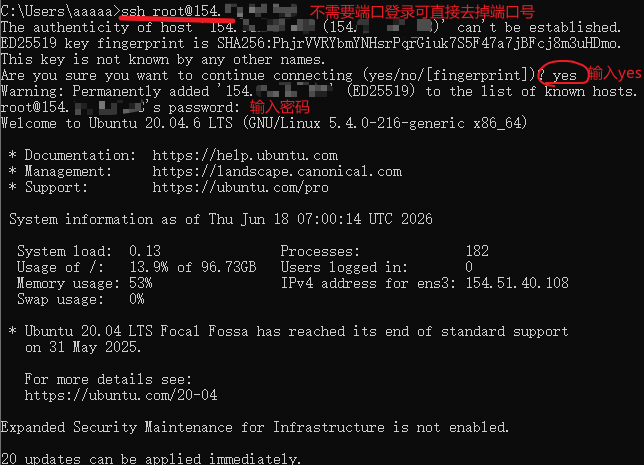
If CMD displays the error "ssh is not recognized as an internal or external command," it usually means the OpenSSH Client component is not enabled. You can search for "OpenSSH Client" under "Settings > Apps > Optional features" and install it. Once installed, reopen CMD to use it normally. Compared to installing third-party software like PuTTY, connecting directly via CMD consumes no extra disk space and eliminates the need to maintain standalone software, which is more than enough for users who only need to connect occasionally and do not require session management features.
It is worth noting that for security reasons, it is recommended to use key authentication instead of password-only logins whenever possible, change the default port 22 to a non-standard port, and combine firewall rules to restrict the allowed IP range. This effectively reduces the risk of brute-force attacks or malicious scanning on your server.
Connection Methods Provided by VMRack Control Panel
The VMRack control panel itself offers multiple connection options to facilitate flexible choices in different scenarios. Regarding SSH key login, users can upload their public keys when creating an instance; the system will automatically write the public key into the server, enabling passwordless login via local SSH tools later. This method offers higher security and is better suited for long-term use. If you prefer traditional methods, you can opt for root password login. The control panel will generate an initial password upon instance creation, allowing users to connect directly via SSH tools once they receive the password. Users can freely switch between the two methods based on personal habits.
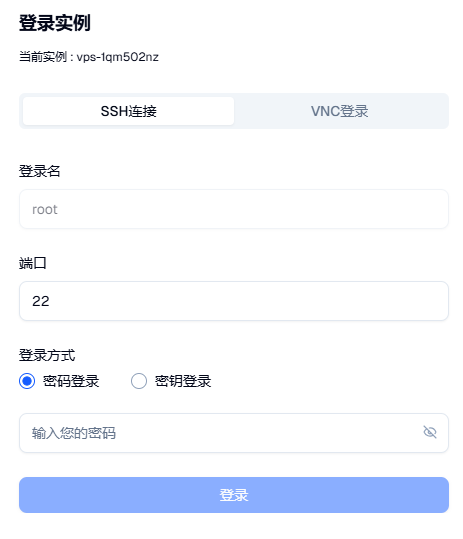
In addition to SSH connections, the VMRack control panel features a built-in VNC login option as a lower-level connection method. When network configuration errors occur, the SSH service fails, or system-level troubleshooting is required, SSH connections are often unavailable. In such cases, accessing the server through the VNC entry in the control panel allows direct access to the server's graphical or console interface—just like operating a physical machine directly—to perform repairs independently of the server's own network status. This makes it an extremely practical backup tool for O&M troubleshooting.
The stable operation of these connection methods relies heavily on the underlying infrastructure. VMRack's self-built data center is located in Los Angeles, possessing complete autonomous control over resources. Combined with premium triple-carrier routes, it provides a robust network guarantee for all connection functions in the control panel.
Summary
In conclusion, there is no single standard answer when recommending SSH tools. Clients such as PuTTY, Xshell, and MobaXterm each have their own strengths, and users can choose freely based on their habits. During daily remote server connections, attention should also be paid to security details such as key authentication and port customization. Beyond SSH client software, the VMRack control panel's built-in key, password, and VNC login methods—along with the Windows CMD command line—provide flexible backup options.


- Products
- VPS Hosting
- VPS HostingUnmetered
- Bare Metal
- GPU Rental
- CDNPublic Beta
- Custom CDN
- Object StoragePublic Beta
- TranscoderPublic Beta